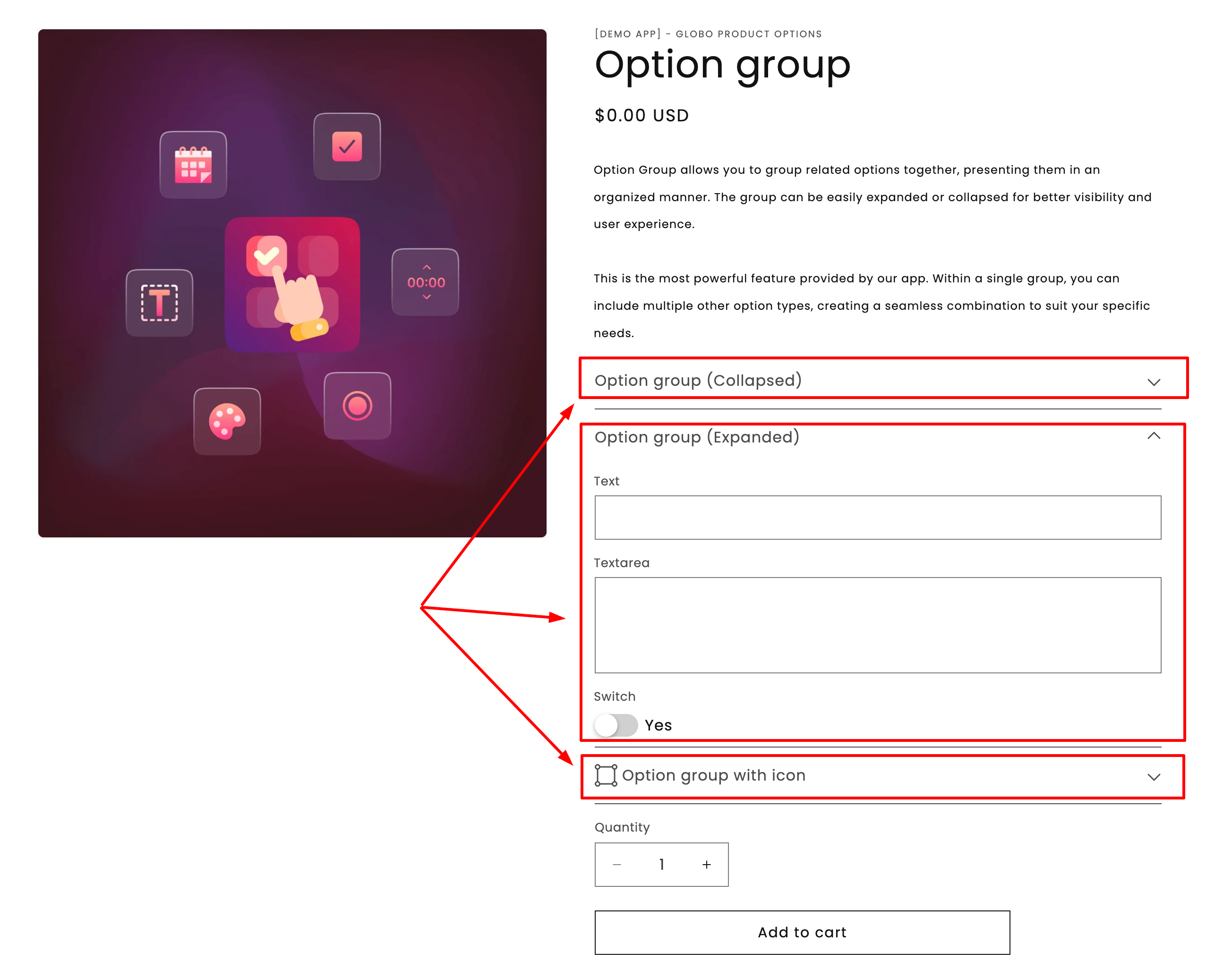
Sections turn a long list of fields into a short list of groups.
Sections turn a long list of fields into a short list of groups.
| Setting | What it does |
|---|---|
| Label | The heading customers read above the group. Required. |
| Style | Default, Expand, or Collapse. See below. |
| Prefix icon | An icon beside the heading, from the app's icon picker. |
| HTML class | A CSS class for your own styling. |
| Conditional logic | Show or hide the whole section, and everything inside it. |
| Style | Behavior | Use when |
|---|---|---|
| Default | Always open, no toggle | The options inside are needed by most customers |
| Expand | Collapsible, starts open | Most customers want it, but you are happy for them to fold it away |
| Collapse | Collapsible, starts closed | An optional or advanced group most customers skip |
| Action | How |
|---|---|
| Add a section | Add section in the add picker. |
| Move options into it | Drag them in. Options can be dragged between sections freely. |
| Move a whole section | Drag the section — everything inside comes with it. |
| Duplicate a section | Use the section's actions menu. Everything inside is copied, with names renumbered to stay unique. |
| Delete a section | Removes the section and everything inside it. You are asked to confirm. |
| Setting | Value |
|---|---|
| Label | Personalize your bracelet |
| Style | Collapse |
| Prefix icon | A paintbrush |
| Conditional logic | Show when Add personalization is enabled |
| Contains | Engraving text, font, position — none required |