Set up and use options in POS
Publish an option set to POS, add the app to the POS home screen, and fill in options at the counter.
Before you start
Point of Sale is included in your plan. See Compare plans.
You have the Shopify POS app, signed in to your store.
You have read POS limitations. Two option types and one add-on mode do not work in POS.
Set up
Review the option types it uses
If the option set contains Dimension or Product links, those options do not work in POS. Either remove them, or create a separate option set for POS without them.
Review the add-on modes
Any value using Fixed amount is not charged in POS. Change those values to Existing product or New product. See Add-on pricing.
Add the app tile to the POS home screen
In the Shopify POS app, customize the home screen and add a tile for the app, so staff can open it in one tap.
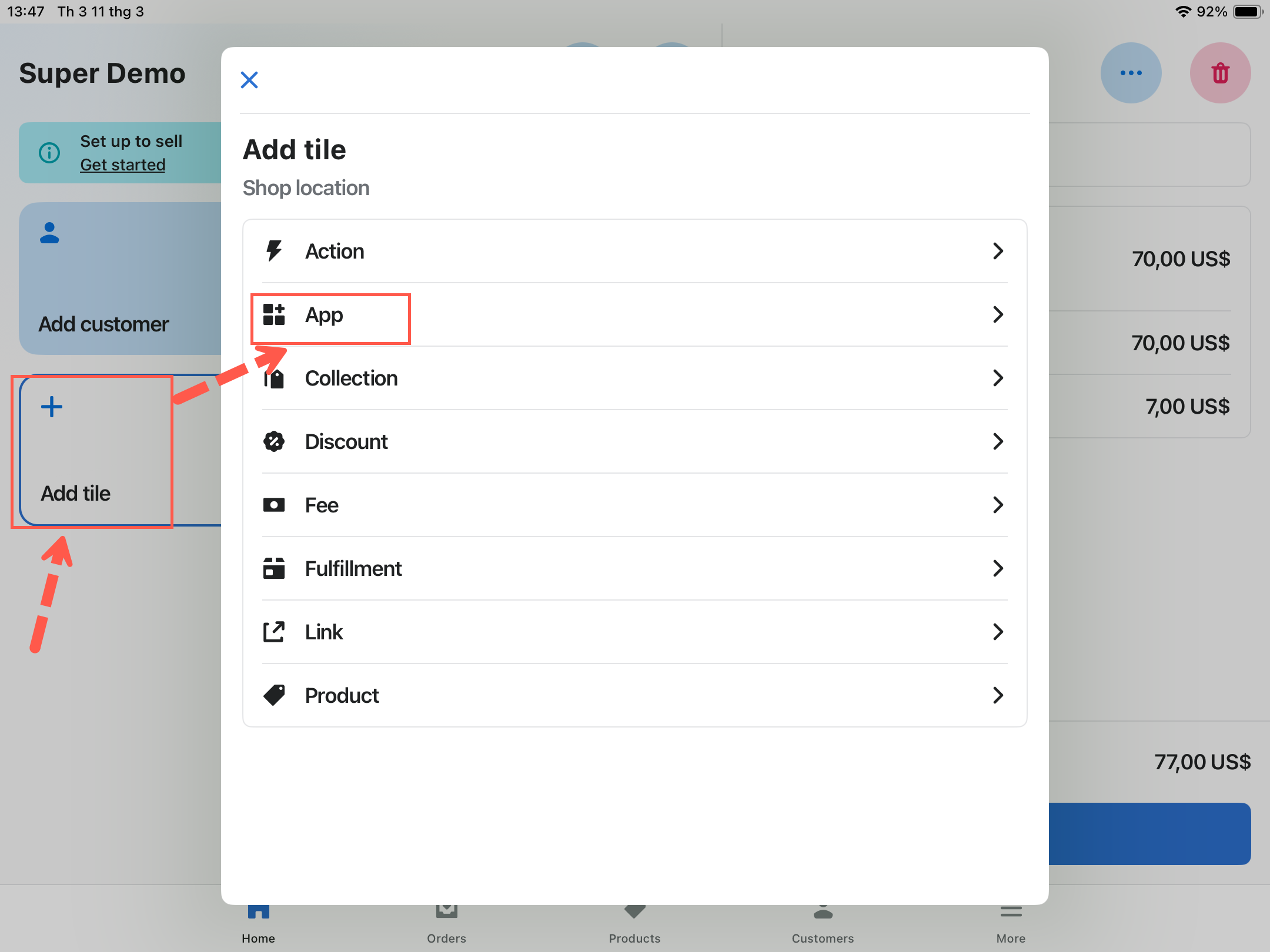
On the POS smart grid, tap Add tile, then tap App.

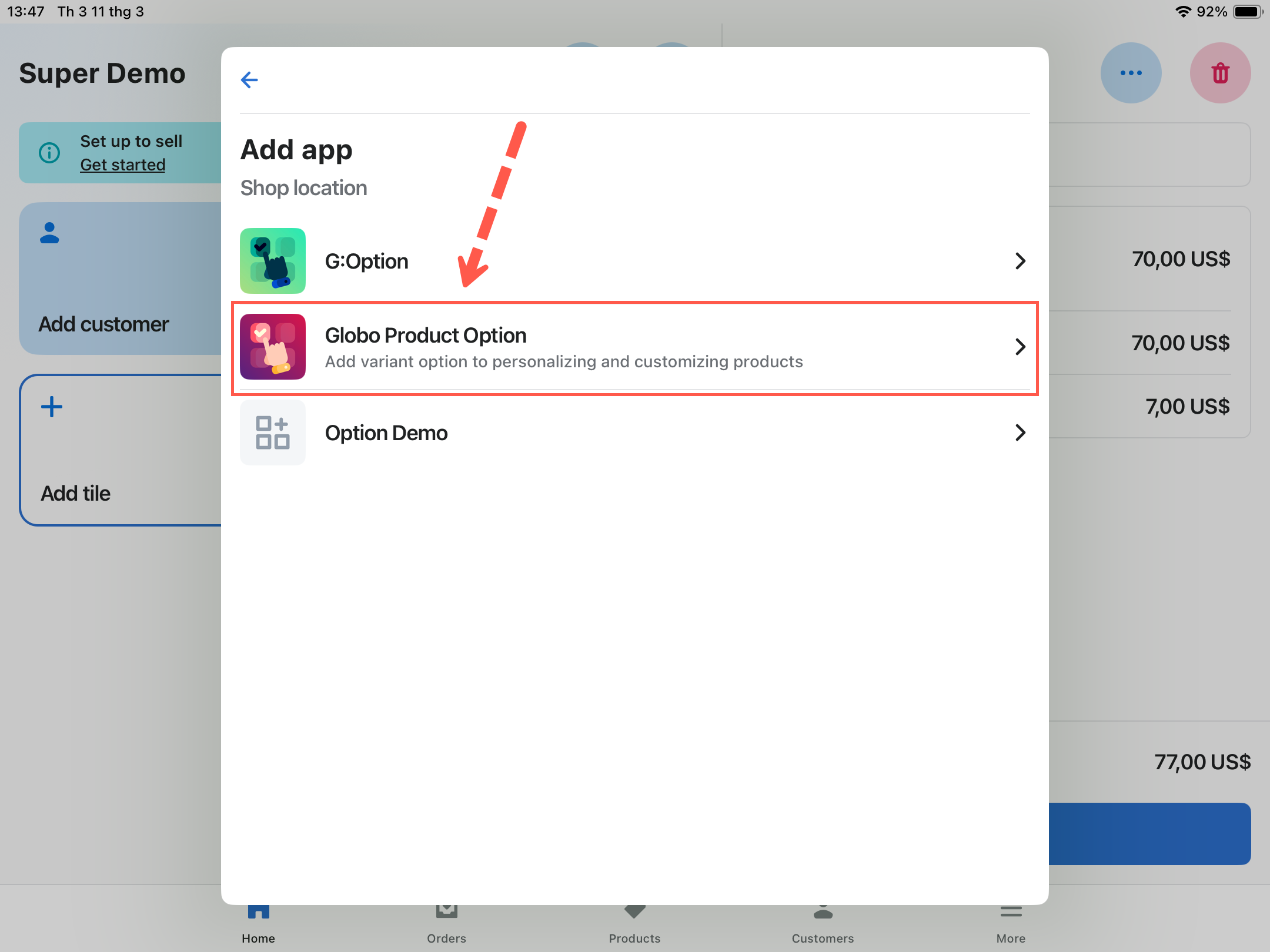
Select Globo Product Options, Variant.

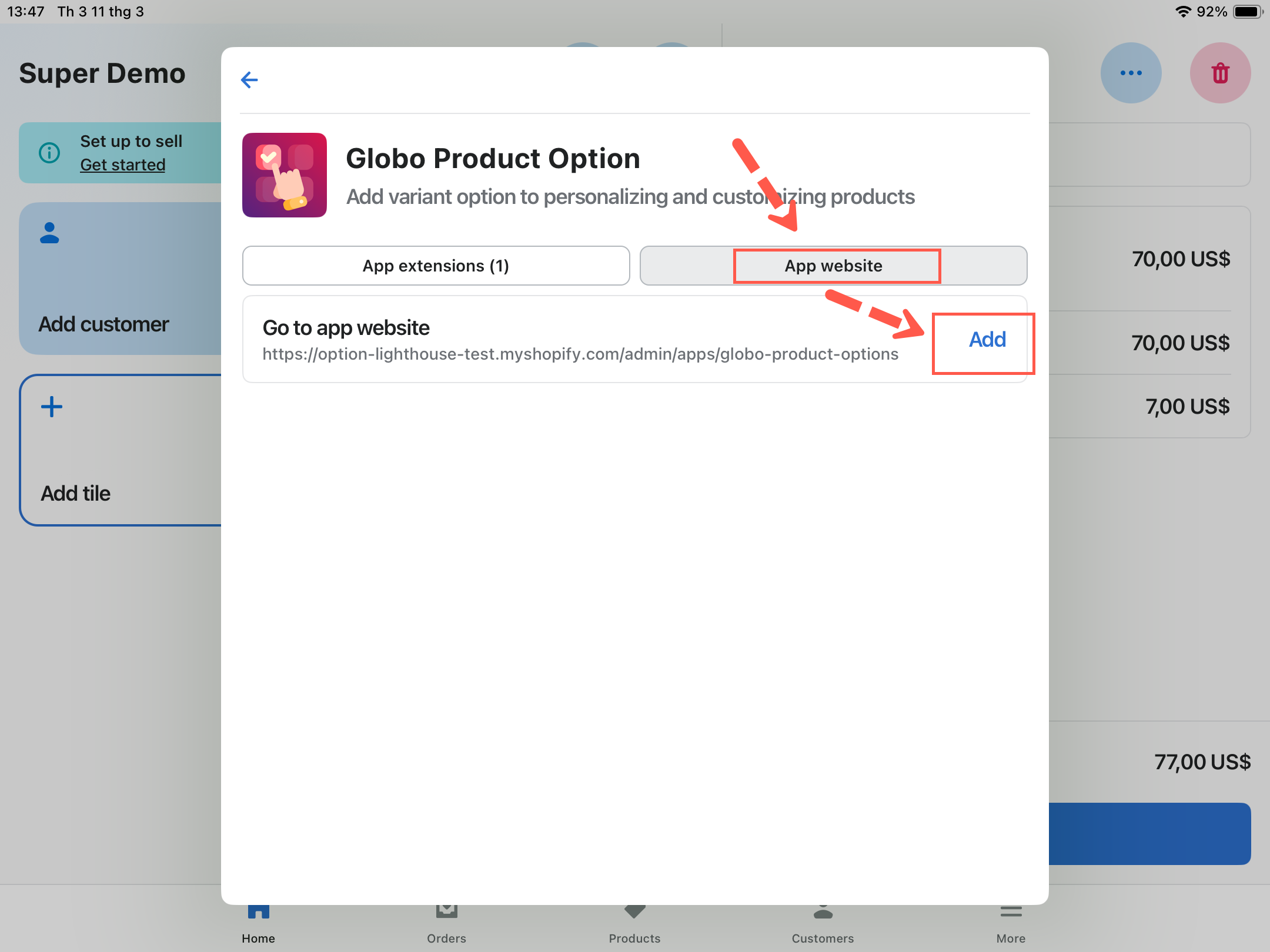
Tap App website, then the Add button.

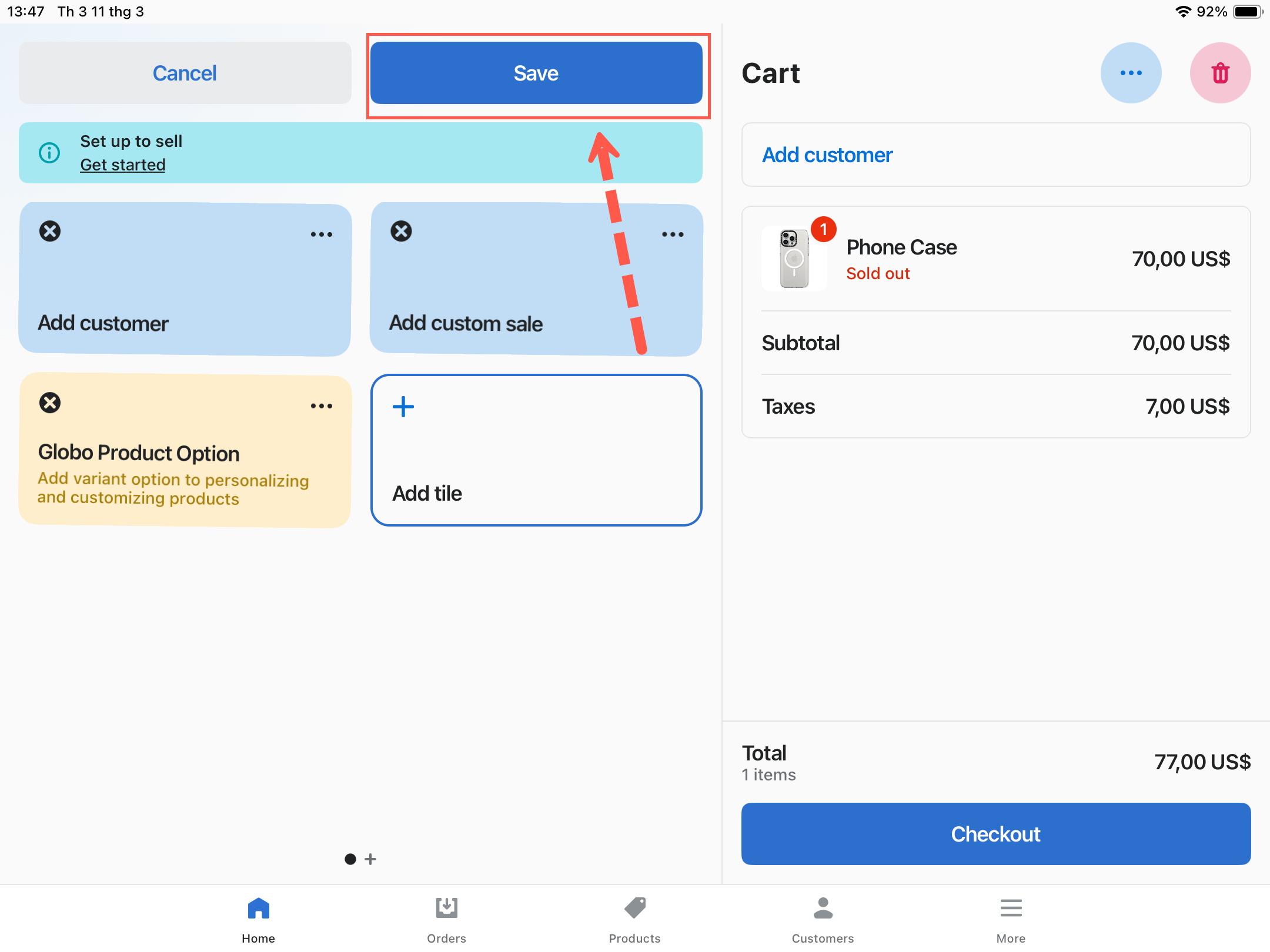
Tap Save to finish.

Taking an order at the counter
Tap Edit Options on the item to personalize
You can select any item that has an option set available. You cannot select add-on items already in the cart, because they belong to the item above them.
If the product has no matching option set, the app says No option sets are being applied for this product. Check the option set's status, its Sales channels, and its product rule. See POS limitations.
Practical advice
Keep POS option sets short
A customer is standing there. A twenty-field form is not a counter experience
Use a separate option set for POS where the online one is long
Publish the long one to Online Store only, and a trimmed one to POS only
Prefer Button and Radio button over dropdowns
Fewer taps on a touch screen
Set sensible default values
Staff confirm rather than fill in
Give options obvious labels
Staff are reading them aloud to a customer
Train staff to open the app after adding the product
The app works from what is already in the cart, so an empty cart gives it nothing to edit
What is stored in the order
The result is the same as online. The options are attached to the line item, and add-on products appear as their own lines, so your production team sees an in-person order in the same format as an online order.
Notes
The app must be opened from inside POS, because it reads the current POS cart.
Add-on lines already in the cart cannot be personalized themselves, because they belong to the item they were added for.
An option set published to both channels is shared, so a change affects both. Use separate option sets if you want them to differ.
Country and customer rules apply to the storefront and are not useful for an in-person sale.
Last updated
Was this helpful?