For the complete documentation index, see llms.txt. This page is also available as Markdown.

Borders and typography

Border weight and corner radius for the three control families, and the four text styles.

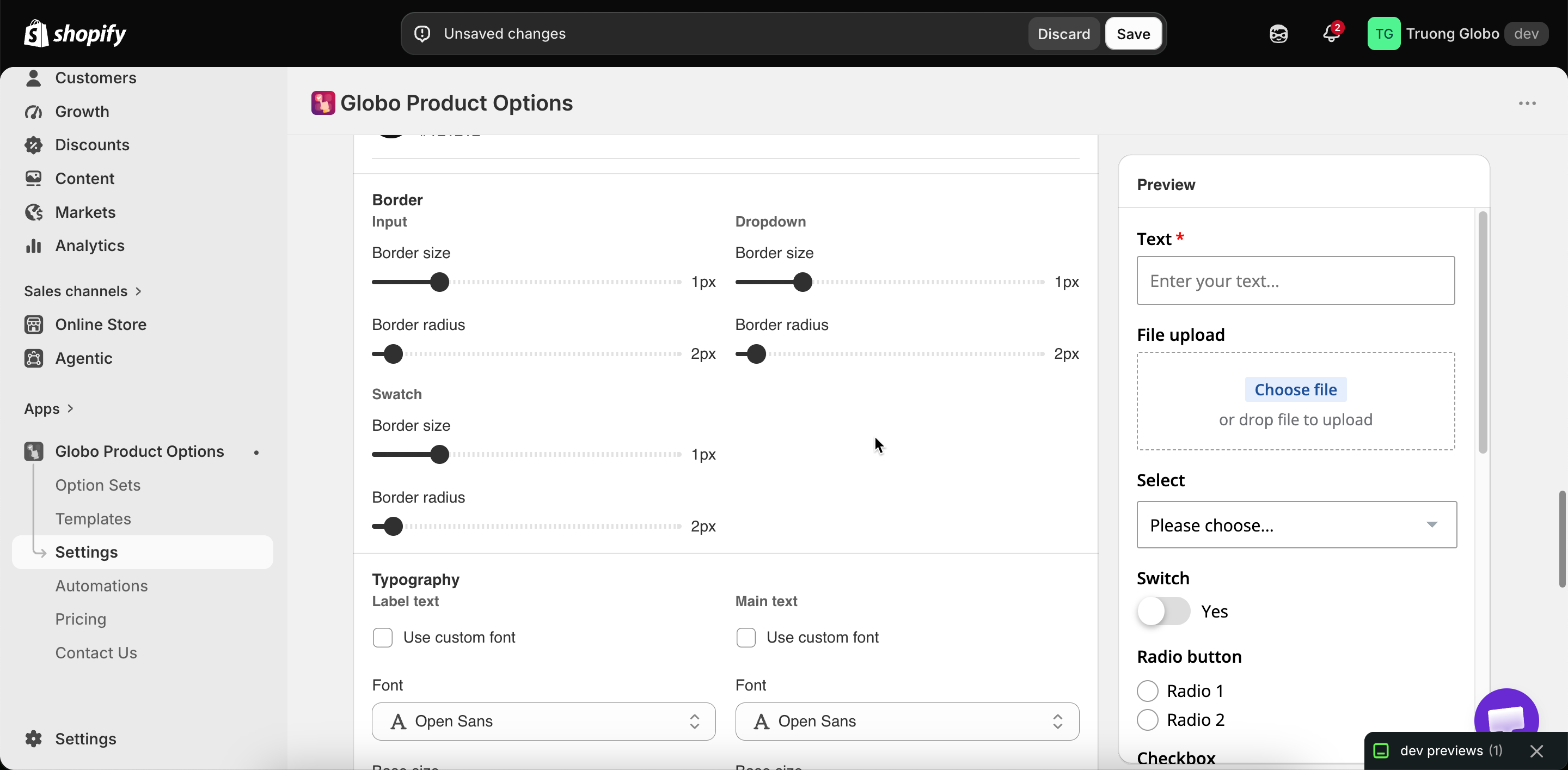
Two groups in Settings > Settings > Design. Both store-wide.

Borders

Three control families, each with a size and a radius.

Family
Covers

Input

Text fields, number fields, textareas

Dropdown

Dropdowns and select fields

Swatch

Color and image swatches, and buttons

Each takes:

Value
Default
What it does

Size

1

Border thickness in pixels

Radius

2

Corner rounding in pixels

Matching your theme

Border radius is the setting that most often makes the widget look separate from the page. Fully rounded buttons in your theme next to square fields in the widget look wrong even when the colors match.

Your theme's controls
Set radius to roughly

Sharp, square corners

0

Slightly softened

2 to 4

Noticeably rounded

8 to 12

Pill-shaped

A large value, around 50

Copy the values from your theme's own settings.

A thicker Swatch border makes the selected state easier to see. See Colors.

Typography

Four text styles, each with a font, a weight or variant, and a size.

Style
Applies to

Label text

Option labels

Main text

What the customer types, and option values

Help text

Help text throughout

The fourth style

The add-on total line

Each style offers:

Control
What it does

Font family

A font from the app's list

Font variant

The weight or style — regular, 600, and so on. The available variants depend on the font

Font size

In pixels

Custom font

Switch to one of your uploaded fonts instead. See Custom fonts

Setting up typography

1

Use your theme's fonts, not similar ones

Two similar sans-serif fonts on one page look like a mistake. Match your theme's fonts exactly, or use one font throughout.

2

Make labels heavier than values

A heavier label with a regular value gives the form a clear reading order. This is why the label style defaults to a heavier variant than the others.

3

Keep help text smaller, but not too small

Set help text one or two points below the main text. Below about 12 pixels, most customers stop reading it.

4

Check non-Latin scripts

Many fonts do not include Arabic, Hebrew, Thai, or CJK glyphs, and missing glyphs fall back to a system font. See Right-to-left and non-Latin text.

5

Check on a phone

Text that is comfortable on a monitor can be cramped on a phone.

The border and typography settings groups in the Design tab
Border families and text style settings, all store-wide.

Notes

  • Both groups work alongside Match theme style, so you can turn on the switch and then adjust the values here.

  • These settings are store-wide, with no per-option-set override. To style one option set differently, use an HTML class and custom CSS.

  • The Personalizer's fonts are set per layer and are separate from these. See Fonts.

  • Custom fonts must be uploaded before they appear here. See Custom fonts.

Last updated

Was this helpful?