For the complete documentation index, see llms.txt. This page is also available as Markdown.

Show options on orders

Where option details appear on orders automatically, and the templates that need a line of Liquid added.

A customer's choices are stored with their order automatically. This page covers where they appear without any setup, and links to the four templates that need a small piece of Liquid added.

Where they appear without setup

Option values are attached to the cart line as line item properties, which is Shopify's own mechanism for custom order details. Your options appear anywhere Shopify already displays line item properties:

Place
Shows

The cart page

Each option's Name and the customer's value, under the item

Checkout

The same

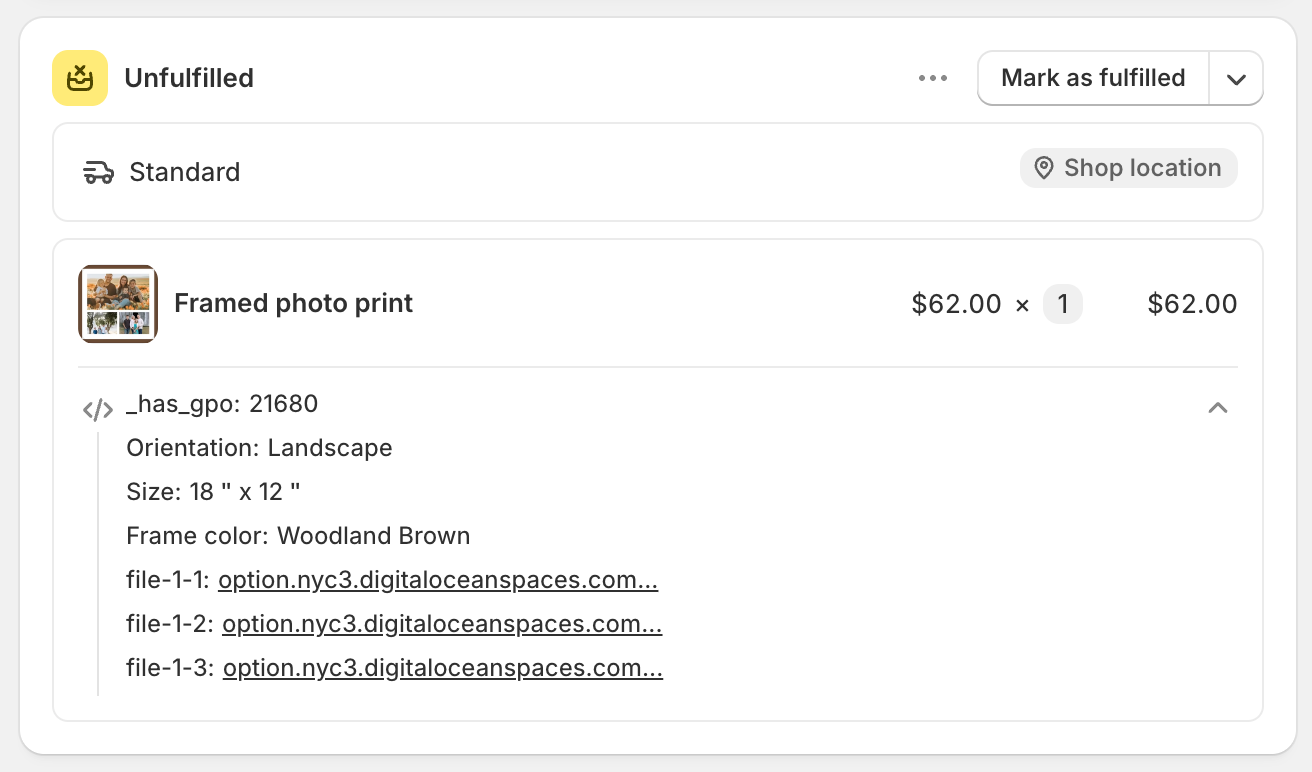
The order in Shopify admin

The same, per line item

Order confirmation emails

Usually, depending on your notification templates

Uploaded files

As links, so your team can download the originals

The label displayed is the option's Name, not its Label. This is why the Name matters: Size: 18" x12" tells your team what to do, and Frame color: Wooodland Brown does not. See Label and Name.

An order in Shopify admin showing a line item with its option details listed underneath
Option details reach the order with no configuration.

Where they need a small addition

Invoices, packing slips, and notification emails use templates you control. If your template does not already print line item properties, add a small snippet to it.

Each of these has its own page, with the exact template, the download link, and the screenshots for that screen:

The snippet is slightly different on each page, because invoices and packing slips loop over line_item while the notification emails loop over line. Use the one on the page for the template you are editing.

Whichever you use, the snippet does two things:

  • It skips properties whose name starts with an underscore. Those are the app's internal properties, which link add-ons to their parent item and carry pricing data. Your team does not need to read them. See How it works.

  • It displays uploaded files as links rather than as long addresses, so a packing slip stays readable.

The snippet must go inside the template's loop over line items, where line_item or line exists. Outside that loop, it displays nothing.

If you use a different packing slip, invoice, or fulfillment app, the same approach works in any Liquid template where the line item is in scope.

Alternative: use an automation

If you would rather not edit templates, a workflow produces much of the same result without any Liquid:

Workflow
Result

Emails you every order with its options, in a format you control

Writes the options into the order's notes — and the note already appears on packing slips, invoices, and emails in most templates

Tags the order by the option chosen, so you can filter and route orders

Order notes update is the most useful of these. Most templates already print the order note, so writing the options into the note puts them on your paperwork without editing a template.

Notes

  • Option details on an order are a record of that order. Renaming an option later does not change orders that have already been placed.

  • Uploaded files stay available from the order in Shopify admin.

  • Add-on products appear as their own line items unless you merge them. See Merge main product and add-ons.

  • Properties whose name begins with an underscore are internal to the app. Do not print them or build processes around them.

Last updated

Was this helpful?