> For the complete documentation index, see [llms.txt](https://docs.globo.io/llms.txt). Markdown versions of documentation pages are available by appending `.md` to page URLs; this page is available as [Markdown](https://docs.globo.io/globo-b2b-bulk-order/quick-order-form/overview.md).

# Quick Order Form overview

Give buyers one product table where they search your catalog, enter quantities and add many items to the cart at once.

A Quick Order form is a product table that you place on a page of your online store. Buyers search by product name, variant or SKU, enter a quantity on each row, and add items to the cart without leaving the page. A footer bar shows the cart's item count and **Total**, with **View cart** and **Checkout** buttons.

You can also turn on a **Bulk order** button. It opens a window where buyers upload an order file (CSV, XLSX, PDF or image) or paste a list of SKUs or barcodes. They review the matched items, then add them all to the cart in one go.

A Quick Order form doesn't appear on its own. You build it in Globo B2B Bulk Order, then add it to a page with the **GloboBO quick order form** block in your theme editor.

{% hint style="info" %}
Globo B2B Bulk Order doesn't calculate wholesale prices. If you also use [Globo B2B Wholesale Pricing](https://apps.shopify.com/wholesale-sami), the form's **Total** shows the discounted cart total from that app.
{% endhint %}

## Before you start

* Turn on the **Globo Bulk Order** app embed in your theme. Without it, no form appears on your storefront. See [Enable the app embed](/globo-b2b-bulk-order/getting-started/enable-app-embed.md).
* New to the app? The [Quickstart](/globo-b2b-bulk-order/getting-started/getting-started.md) takes you from install to a working form in a few minutes.

## What you can set up

<table data-view="cards"><thead><tr><th></th><th></th><th data-hidden data-card-target data-type="content-ref"></th></tr></thead><tbody><tr><td><strong>Create a Quick Order form</strong></td><td>Build a form, choose its products, save it and add it to a page.</td><td><a href="/globo-b2b-bulk-order/quick-order-form/create-a-form.md">Create a Quick Order form</a></td></tr><tr><td><strong>Customize the form</strong></td><td>Change the title, search and sort, columns, pagination, colors and CSS.</td><td><a href="/globo-b2b-bulk-order/quick-order-form/customize-the-form.md">Customize the form</a></td></tr><tr><td><strong>Choose who sees the form and where</strong></td><td>Limit the form to certain pages, logged-in buyers or tagged customers.</td><td><a href="/globo-b2b-bulk-order/quick-order-form/visibility.md">Choose who sees the form and where</a></td></tr><tr><td><strong>Let buyers upload an order file</strong></td><td>Accept CSV, XLSX, PDF or image order files and review them before adding to cart.</td><td><a href="/globo-b2b-bulk-order/quick-order-form/upload-an-order-file.md">Let buyers upload an order file</a></td></tr><tr><td><strong>Let buyers paste a SKU list</strong></td><td>Let buyers paste SKUs or barcodes with quantities, for example from a spreadsheet.</td><td><a href="/globo-b2b-bulk-order/quick-order-form/paste-a-sku-list.md">Let buyers paste a SKU list</a></td></tr></tbody></table>

## Manage your forms

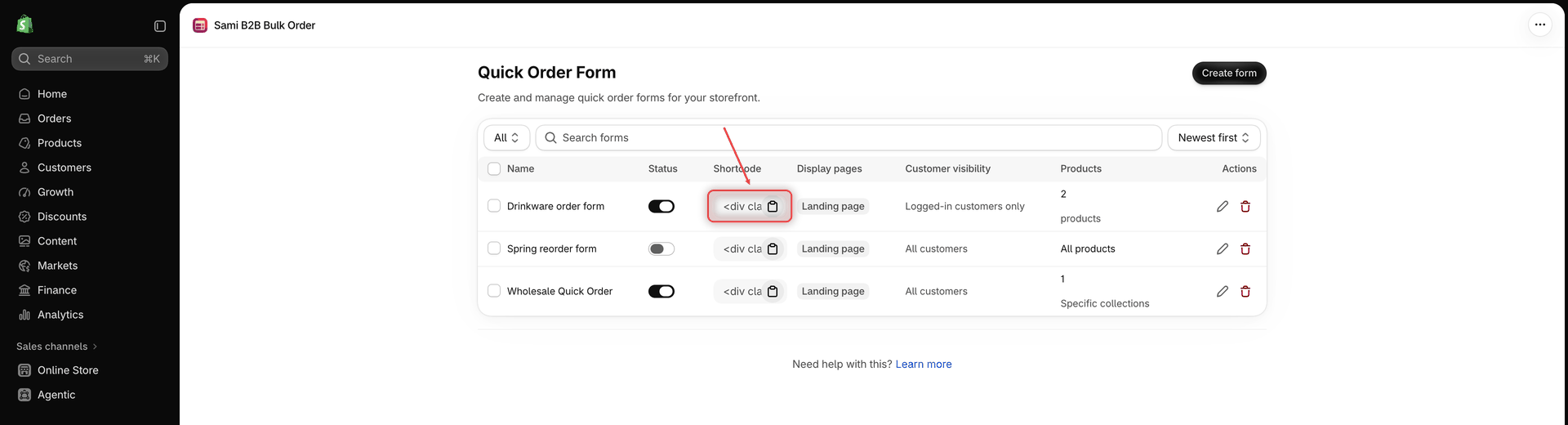
In Shopify admin, go to **Apps** > **Globo B2B Bulk Order**, then click **Quick Order** in the app navigation. The **Quick Order Form** page lists every form you've created. To start a new one, click **Create form**.

<figure><img src="https://4205698016-files.gitbook.io/~/files/v0/b/gitbook-x-prod.appspot.com/o/spaces%2FcOPpR31lfLzPdPWnPtOU%2Fuploads%2Fgit-blob-f899677972e56e5d805d0cbea013198cdbf22fba%2Fscreenshot-quick-order-list.png?alt=media" alt="Quick Order Form list with three forms showing the Name, Status, Shortcode, Display pages, Customer visibility, Products and Actions columns"><figcaption><p>The Quick Order Form list shows each form's status, embed code and visibility at a glance.</p></figcaption></figure>

| Column                  | What it shows                                                                                                                                                   |
| ----------------------- | --------------------------------------------------------------------------------------------------------------------------------------------------------------- |
| **Name**                | The form's name. Buyers don't see it.                                                                                                                           |
| **Status**              | A switch: on means **Active**, off means **Draft**. A change here saves right away.                                                                             |
| **Shortcode**           | The form's embed code. Click the copy icon (**Copy shortcode**) to copy it.                                                                                     |
| **Display pages**       | The page types picked in **Display location**, or **All** when none are picked.                                                                                 |
| **Customer visibility** | Who can see the form, for example **Logged-in customers only**. **Customers with tags** also shows the number of tags, for example **Customers with tags (2)**. |
| **Products**            | **All products**, or how many products or collections the form uses.                                                                                            |
| **Actions**             | The pencil icon (**Edit**) opens the form in the editor. The trash icon (**Delete**) deletes the form after you confirm.                                        |

Above the table, filter the list by status (**All**, **Active** or **Draft**), search by form name with **Search forms**, and sort by **Newest first** or **Oldest first**.

To change several forms at once, tick their checkboxes. Then click one of these buttons:

* **Duplicate**: makes a copy of each form right away. A copy has the original's name followed by "(Copy)", and the same settings and status. It has its own embed code, so it isn't on any page until you place it.
* **Set active** or **Set draft**: changes the status after you click **Confirm**.
* **Delete**: removes the forms after you confirm. You can't undo this.

{% hint style="warning" %}
Deleting a form, or setting it to **Draft**, doesn't remove its block from your theme. The block just shows nothing. Remove the block in the theme editor if you no longer need it.
{% endhint %}

## Next steps

* [Create a Quick Order form](/globo-b2b-bulk-order/quick-order-form/create-a-form.md)
* [Customize the form](/globo-b2b-bulk-order/quick-order-form/customize-the-form.md)
* [Choose who sees the form and where](/globo-b2b-bulk-order/quick-order-form/visibility.md)
* [Troubleshooting](/globo-b2b-bulk-order/help/troubleshooting.md)
