> For the complete documentation index, see [llms.txt](https://docs.globo.io/llms.txt). Markdown versions of documentation pages are available by appending `.md` to page URLs; this page is available as [Markdown](https://docs.globo.io/globo-b2b-bulk-order/settings/overview.md).

# Translations overview

Translate the storefront wording of every Globo B2B Bulk Order tool into your store's languages, and choose which languages buyers see.

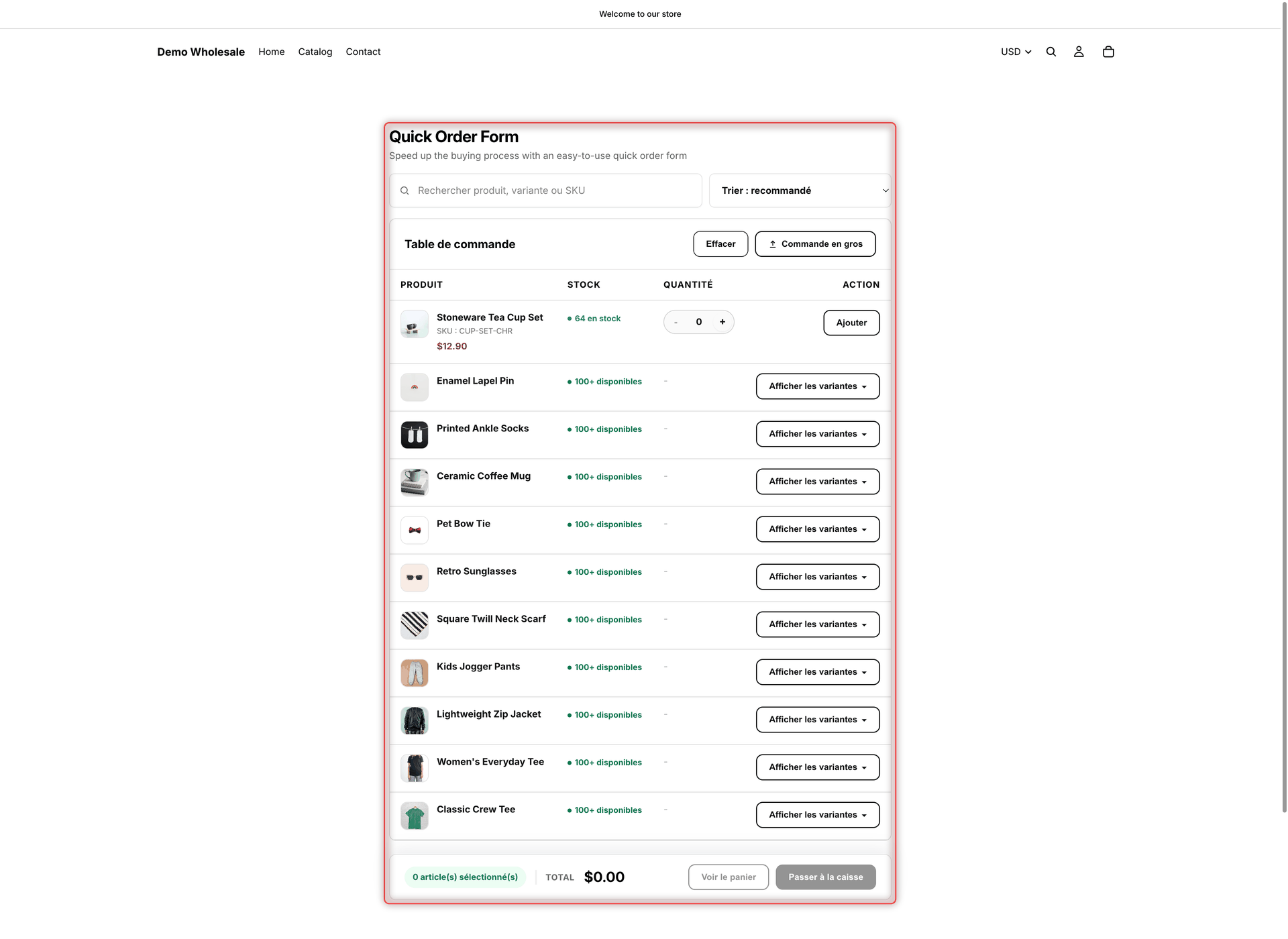
In **Settings** > **Translations**, you set the wording buyers see in each of your store's languages. This covers all three tools (Quick Order form, Collection Quick Order and Variant Table), the stock labels, the add-to-cart toasts, and the order download in customer accounts. Buyers see the wording for the language they're browsing your store in.

## Before you start

* Add your languages in Shopify first. In Shopify admin (not in the app), go to **Settings** > **Languages**. See [Managing your store's languages](https://help.shopify.com/en/manual/international/languages/manage-languages).
* The storefront tools only appear when the **Globo Bulk Order** app embed is on. See [Enable the app embed](/globo-b2b-bulk-order/getting-started/enable-app-embed.md).

## What you can do

<table data-view="cards"><thead><tr><th></th><th></th><th data-hidden data-card-target data-type="content-ref"></th></tr></thead><tbody><tr><td><strong>Edit translations</strong></td><td>Add a language, edit its wording section by section, change your English wording, and publish it.</td><td><a href="/globo-b2b-bulk-order/settings/edit-translations.md">Edit translations</a></td></tr><tr><td><strong>Auto-translate with AI</strong></td><td>Fill in every untranslated string of a language at once, then review and save.</td><td><a href="/globo-b2b-bulk-order/settings/auto-translate.md">Auto-translate with AI</a></td></tr></tbody></table>

<figure><img src="https://4205698016-files.gitbook.io/~/files/v0/b/gitbook-x-prod.appspot.com/o/spaces%2FcOPpR31lfLzPdPWnPtOU%2Fuploads%2Fgit-blob-a5a5096e5442f38bb67a2de4b140383f5c8d5a46%2Fscreenshot-storefront-quick-order-form-french.png?alt=media" alt="Quick Order form on the storefront with its column headers, search box, sort menu and buttons shown in French"><figcaption><p>Buyers who browse your store in French see the form's wording in French.</p></figcaption></figure>

## What you can translate

The translation editor groups the wording into six **Storefront sections**. Some section names differ from the names in the app's menu: Collection Quick Order is **Quick Buy Collection**, and Variant Table is **Quick Buy Variant**.

| Section                    | What it covers                                                                                                                                                                                                              |
| -------------------------- | --------------------------------------------------------------------------------------------------------------------------------------------------------------------------------------------------------------------------- |
| **Quick Order Form Table** | The Quick Order form: column headers, buttons such as **Add** and **Clear**, the search box and sort menu, the footer bar, the order-file upload and paste-list windows, and the form's messages.                           |
| **Quick Buy Collection**   | Collection Quick Order: the **Add to Cart**, **Choose options** and **Sold out** button texts, the options popover and the message after adding.                                                                            |
| **Quick Buy Variant**      | Variant Table: the **Add to Cart ({{total\_price}})** button, **Adding...** and the message after adding.                                                                                                                   |
| **Stock**                  | The stock labels all three tools show, such as **Only {{count}} left**. The stock levels and colors are set in [Stock thresholds](/globo-b2b-bulk-order/settings/stock-status.md).                                          |
| **Toast**                  | The shared add-to-cart message: its success text, the error heading and text, the **View cart and checkout** link and the **Close** label. See [Toast notifications](/globo-b2b-bulk-order/settings/cart-notifications.md). |
| **Order export**           | The **Download CSV** action and **Download order** window in customer accounts, and the column headings of the downloaded file. See [Order export](/globo-b2b-bulk-order/settings/order-export.md).                         |

Words in double curly brackets, such as `{{count}}`, are replaced with real numbers or text on the storefront.

## How languages work

### Your languages come from Shopify

* **Add language** offers the languages added to your store in Shopify that aren't in the app yet, whether they're published in Shopify or not. You can prepare the wording before you publish a language in Shopify.
* Buyers can only switch to languages that are published in Shopify.
* A language you add starts with the app's default English wording in every field and is published right away. Buyers who browse in that language see English until you translate it.
* English is always in the list. It's the wording every translation is made from. You can't delete it, and the app keeps it published.

### Published and Not published

Each language has a **Published** switch: in the **Status** column of the list, and in the translation editor.

| Status            | What buyers see                                                                                         |
| ----------------- | ------------------------------------------------------------------------------------------------------- |
| **Published**     | Your wording for this language, on the storefront and in the order download in customer accounts.       |
| **Not published** | The wording stays in the app only. Buyers who browse in this language see your English wording instead. |

Your default language is always published. Its switch is greyed out, it has no delete icon, and the editor shows **Your store's default language is always published.** The default language is the language you use the app in (see [Translations and the app language](#translations-and-the-app-language)). For most stores, it's English.

### Which language buyers see

The tools use the language the buyer is browsing your store in, usually chosen with your theme's language selector. The app looks for wording in this order:

1. The published translation for exactly that language, for example `pt-BR`.
2. If there isn't one, a published translation for the same base language, for example `pt`.
3. Otherwise, your English wording.

If a field is left empty, buyers see the app's built-in English text for that field, not your edited English wording.

The **Download CSV** action and window in customer accounts use the language the buyer reads their customer account in. A text you haven't translated shows the app's built-in wording for that language. A column heading you haven't translated shows your English heading.

{% hint style="info" %}
Changes reach your storefront shortly after you save. Reload the storefront page to see them.
{% endhint %}

## What you can't translate here

* **The Quick Order form's heading and description.** You set these per form, for each language, in the form's **Customize** tab, in the **Header** section. See [Customize the form](/globo-b2b-bulk-order/quick-order-form/customize-the-form.md#header).
* **The Quick Order form's loading caption**, **Loading products... ({{loaded}} loaded)**, and its page counter, such as "Page 1 of 2". They're always in English.
* **Variant Table quantity-rule messages.** They're always in English. See [Set quantity rules](/globo-b2b-bulk-order/variant-table/quantity-rules.md#language-of-the-messages).
* **Variant Table column headers** (**Variant**, **Price**, **Quantity**, **Stock**). A new Variant Table saves them in the app language when you create it. Buyers see them in every language, and Translations doesn't change them.
* **The previews in the app's form editors.** They always show the app's built-in English wording. Check your translations on the storefront.

## Translations and the app language

The language button on the Dashboard changes the language of the app's own screens. It doesn't change your translations: the wording of the storefront tools is set in **Settings** > **Translations**. See [Change the app language](/globo-b2b-bulk-order/getting-started/dashboard.md#change-the-app-language).

The app language still matters here in two ways:

* **It's your default language in Translations.** That language is always published and can't be deleted. If you use the app in a language other than English, English gets a **Status** switch and a trash icon in the list, but the app still keeps English: deleting it has no effect, and it's published again the next time the app opens.
* **It sets the Variant Table column headers** of every table you create, as described above. Set the app language to your storefront's main language before you create Variant Tables.

## Next steps

* [Edit translations](/globo-b2b-bulk-order/settings/edit-translations.md)
* [Auto-translate with AI](/globo-b2b-bulk-order/settings/auto-translate.md)
* [Toast notifications](/globo-b2b-bulk-order/settings/cart-notifications.md)
* [Order export](/globo-b2b-bulk-order/settings/order-export.md)
