For the complete documentation index, see llms.txt. This page is also available as Markdown.

Existing product

Link an option to a product and variant you already sell, so the add-on inherits its price, stock, SKU, and weight.

The Existing product mode links an option, or one of its values, to a product already in your Shopify catalog. The add-on then uses that product's price, inventory, SKU, and weight.

Use it when the add-on is a product you already sell, such as a gift box, a spare part, or a matching accessory.

Steps

1

Make sure the product exists

Create the product in Shopify first, with the price and variants you want. The app links to an existing product. It does not create one.

2

Open the price field

Price under Add-on Settings for an input type, or the Price cell on an option value's row for a selection type.

3

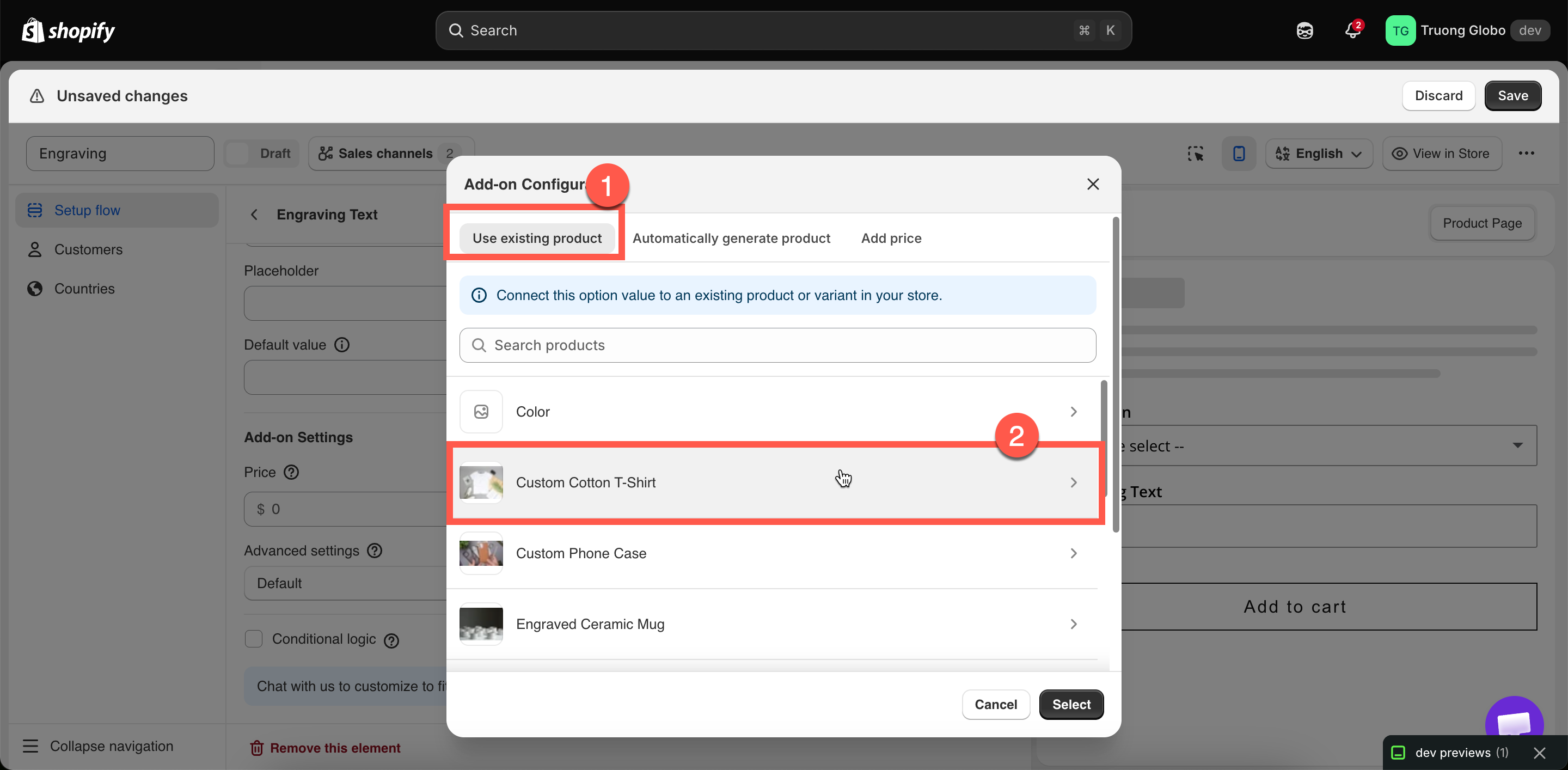
Stay on the Existing product tab

This is the first of the three tabs and the default.

4

Find and select the product

Search your catalog by name. The list is paginated, so use the search field rather than scrolling.

5

Select the variant

When you select a product, its variants are listed. Select the exact variant you want.

The add-on's price and inventory come from the variant, not from the product. For example, a product with Small at $3.00 and Large at $5.00 produces a different add-on depending on the variant you select.

6

Select Select

The dialog closes, and a Product column is added to the values table with a link that opens the product in Shopify admin.

7

Set how it scales

The Add-on quantity dropdown on the Advanced tab controls how the quantity is calculated. See Advanced add-on modes.

The Existing product tab with a product selected and its variants listed
The Add-on quantity dropdown decides how the add-on quantity is calculated.
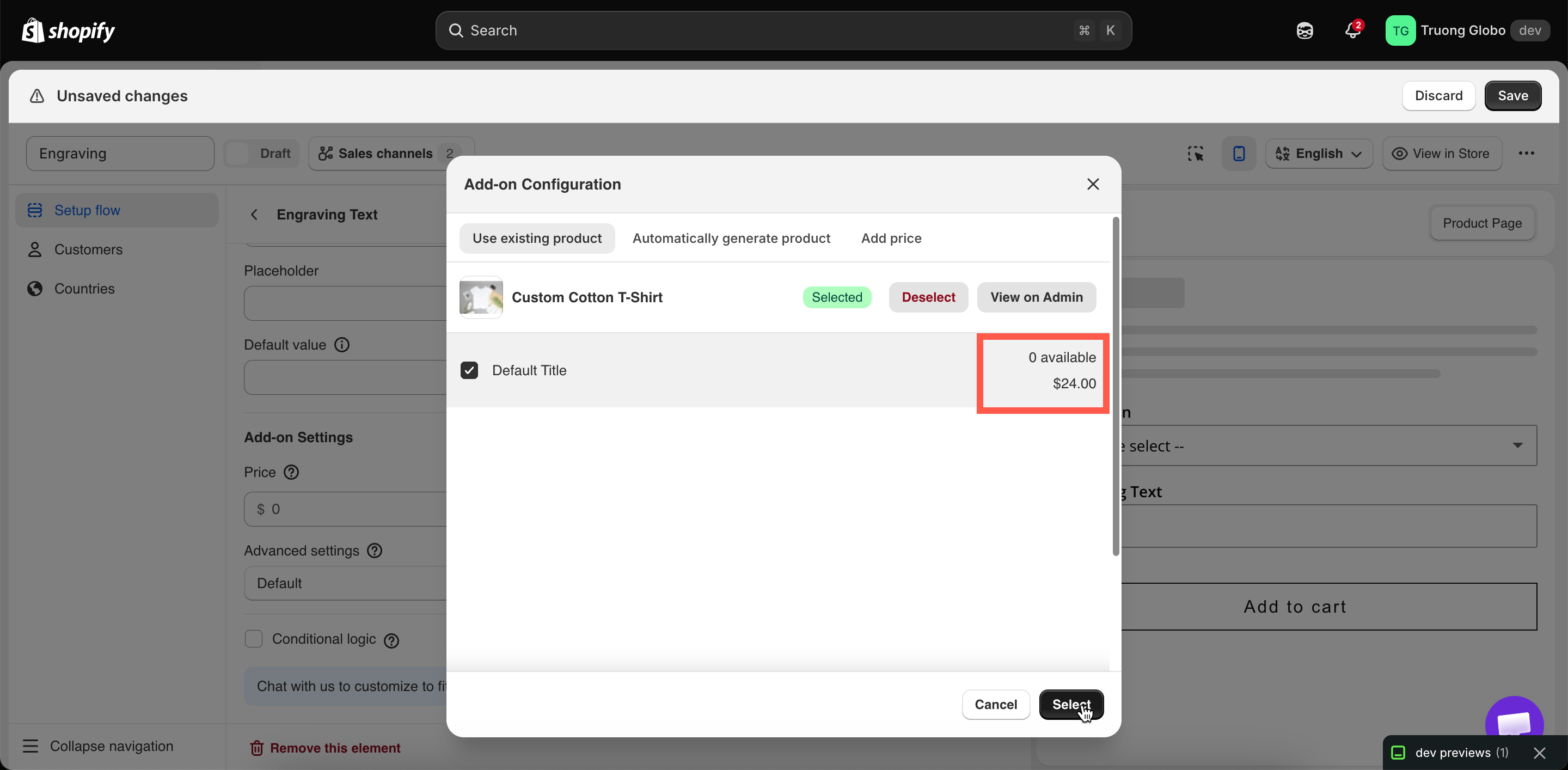
The product picker with a variant selected, showing its price and inventory
The add-on price and inventory come from the variant you select.

What you get

Behavior
Detail

The price follows the product

Change the variant's price in Shopify and the add-on price changes with it. You do not edit it in two places.

Stock is real

Selling the add-on draws down that variant's inventory, exactly as a normal sale does.

Out-of-stock handling works

The Out of stock options setting can hide, blur, or strike through the value when the variant runs out.

Its own SKU, weight, and tax setting

Fulfillment and shipping calculations treat it as the real product it is.

Reported properly

It appears in your Shopify product reports as sales of that product.

Works in POS

Unlike Fixed amount.

Its own cart line

Linked to the main item. You can merge them visually — see Merge main product and add-ons.

When to use this mode

Use it when
Use something else when

You already sell the item separately

You do not — use New product

You want one inventory figure for both routes

You want the add-on counted separately from direct sales

The price should stay in step with your catalog

The add-on price should differ from the shelf price

The add-on has a real weight and SKU

It is a service — use Fixed amount

A single inventory count is usually the best option when add-on and standalone gift boxes share the same stock. To track their inventory separately, generate a separate product instead.

Examples

A gift box you also sell

Setting
Value

Option

Gift box, a Switch

Price

Existing product → Gift Box → Medium

Add-on quantity

One time charge — one box per order

Out of stock options

Not applicable on a Switch — but the box's stock still applies

Pack sizes as separate SKUs

A Button option with the values 1 pack, 3 pack, and 5 pack. Each value links to that pack's own product variant, so inventory is tracked per pack size.

Premium fabrics sold by the meter

An Image swatch where standard fabrics are free and premium fabrics link to your existing fabric products. When a fabric runs out, its swatch is blurred.

A matching accessory

A Checkbox labeled Add the matching case, linked to the case product, with the Default mode so a customer buying two of the main product receives two cases.

Keeping it working

If you do this in Shopify
Then

Change the variant's price

Nothing to do — the add-on price follows

Change its stock

Nothing to do — availability follows

Delete the product or variant

The link breaks. The app tells you the product or variant no longer exists when you next open the dialog. Relink to something else

Rename the product

The link holds — it is not by name

Unpublish it from the Online Store

It can no longer be purchased through the widget. Keep add-on products published

Notes

  • Link to a variant, not only a product. If the product has several variants, you must select one.

  • The same product can be used by several options and values. They all share its inventory.

  • Duplicating an option set does not duplicate the linked product. Both sets link to the same product and use the same inventory. See Duplicate and delete.

  • If the linked product's details are out of date in the app, use Sync Add-on data in the builder's more-actions menu.

Last updated

Was this helpful?