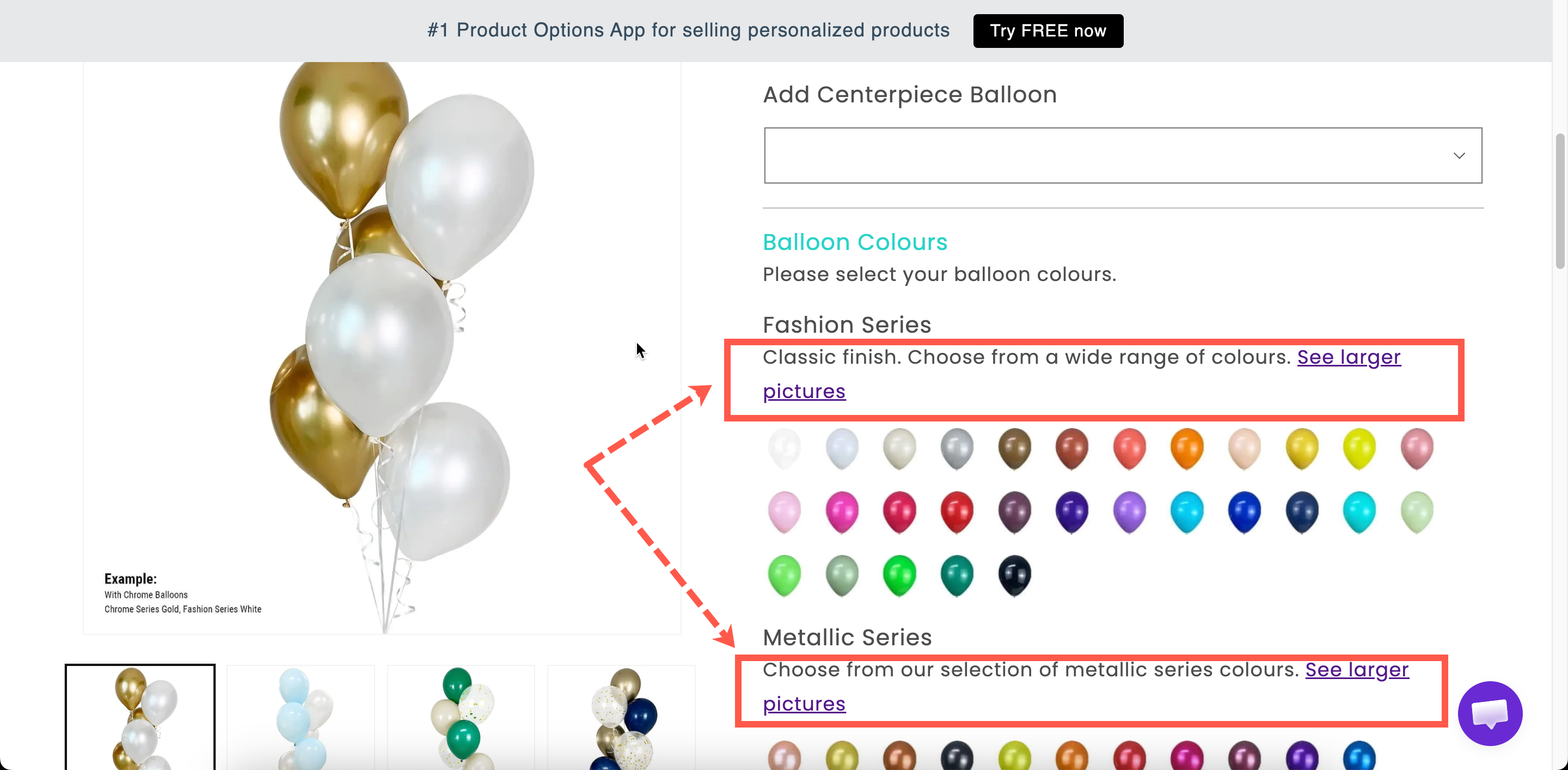
Paragraph
Formatted text written in a rich-text editor, for explanations that belong on the page.
A block of formatted text, written in a rich-text editor, so you can use bold, italics, lists, and links.
Use it for anything the customer needs to read before deciding, such as a returns condition, a lead-time note, or an explanation of what personalization involves.
How to add Image to Pop-up Modal and Paragraph
Steps to Manage:
Go to Shopify Dashboard Navigate to:
Content → Files → Upload filesUpload Your Image Upload the image file you want to display in your popup or paragraph.
Copy the Image URL After uploading, copy the image URL provided by Shopify.

Preview the Image
Open a new browser tab
Paste the copied URL
Right-click on the image
Select “Copy image” (or copy image address)

Go to Globo Product Options App
Open the Popup Modal or Paragraph element
Paste the image tag or URL inside the content field

What customers see
Your formatted text, in the flow of the form.

Settings
Content
The text itself, written in a rich-text editor.
Show or hide the paragraph.
Styling hook and width.
The editor supports bold, italics, lists, links, and alignment. It is the same editor used by Pop-up modal and Tabs.
Paragraph, help text, or modal?
All three can hold an explanation, so use this table to decide between them.
Paragraph
One to three sentences, about a group
It reads as page content, and can be formatted
Examples
A lead-time note above the personalization fields
Personalized items take 3–5 working days to make, on top of delivery time. They cannot be returned unless faulty.
A conditional warning
A paragraph explaining that engraved items cannot be returned, displayed by conditional logic once the customer has entered something in the engraving field.
A short instruction with a link
Not sure of your size? See our size guide below.
Paired with a Size chart in a collapsed Section.
Notes
Available on all plans.
Works in Shopify POS.
Paragraphs can be translated for each storefront language, like other option content. See Translate option content.
Formatting comes from the editor. Use HTML for anything the editor does not support.
Last updated
Was this helpful?