> For the complete documentation index, see [llms.txt](https://docs.globo.io/llms.txt). Markdown versions of documentation pages are available by appending `.md` to page URLs; this page is available as [Markdown](https://docs.globo.io/options/option-types/static-types/paragraph.md).

# Paragraph

Formatted text written in a rich-text editor, for explanations that belong on the page.

A block of formatted text, written in a rich-text editor, so you can use bold, italics, lists, and links.

Use it for anything the customer needs to read before deciding, such as a returns condition, a lead-time note, or an explanation of what personalization involves.

## How to add Image to Pop-up Modal and Paragraph

#### Steps to Manage:

1. **Go to Shopify Dashboard**\
   Navigate to: `Content → Files → Upload files`
2. **Upload Your Image**\
   Upload the image file you want to display in your popup or paragraph.
3. **Copy the Image URL**\
   After uploading, copy the image URL provided by Shopify.

<figure><img src="https://3141646361-files.gitbook.io/~/files/v0/b/gitbook-x-prod.appspot.com/o/spaces%2FkMyxhAk2ZlJa4wZQGfBI%2Fuploads%2F72mqukCJNp9kMAVWH9PI%2Fimage.png?alt=media&amp;token=c447876d-7794-4f4c-81df-4206569d3c6c" alt=""><figcaption></figcaption></figure>

4. **Preview the Image**

* Open a new browser tab
* Paste the copied URL
* Right-click on the image
* Select **“Copy image”** (or copy image address)

<figure><img src="https://3141646361-files.gitbook.io/~/files/v0/b/gitbook-x-prod.appspot.com/o/spaces%2FkMyxhAk2ZlJa4wZQGfBI%2Fuploads%2FElBL9tvas6c2O6CHx80o%2Fimage.png?alt=media&amp;token=d68c3973-f503-481b-bc28-cf8490590e6a" alt=""><figcaption></figcaption></figure>

5. **Go to Globo Product Options App**

* Open the **Popup Modal** or **Paragraph** element
* Paste the image tag or URL inside the **content field**

<figure><img src="https://3141646361-files.gitbook.io/~/files/v0/b/gitbook-x-prod.appspot.com/o/spaces%2FkMyxhAk2ZlJa4wZQGfBI%2Fuploads%2FufIux4ck9Tr4vpBCo1GA%2Fimage.png?alt=media&amp;token=d226e97a-fdee-4bd7-9ec7-78cfd0c7a798" alt=""><figcaption></figcaption></figure>

## What customers see

Your formatted text, in the flow of the form.

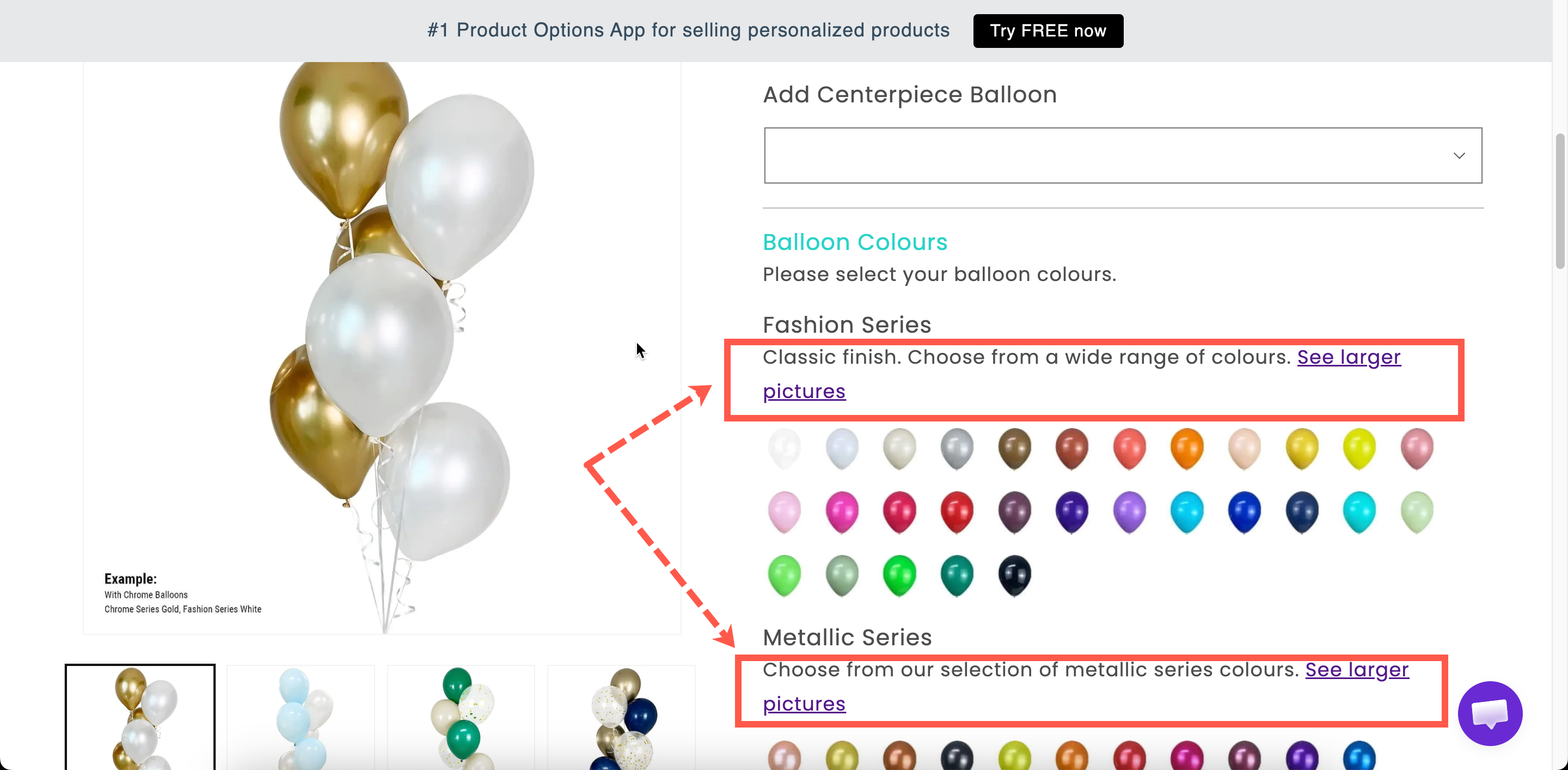
<figure><img src="https://3141646361-files.gitbook.io/~/files/v0/b/gitbook-x-prod.appspot.com/o/spaces%2FkMyxhAk2ZlJa4wZQGfBI%2Fuploads%2Fgit-blob-4f5ffb13bba0359ef2f6e67962a7458c5c7117ce%2F2026-09-03_15-23-36.png?alt=media" alt="A formatted paragraph on a storefront product page above a group of options"><figcaption><p>A paragraph is for what the customer must read, not what they might want to.</p></figcaption></figure>

## Settings

<table><thead><tr><th width="250">Setting</th><th>What it does</th></tr></thead><tbody><tr><td><strong>Content</strong></td><td>The text itself, written in a rich-text editor.</td></tr><tr><td><a href="/options/option-types/shared-settings/conditional-logic-and-add-on-fields.md#conditional-logic">Conditional logic</a></td><td>Show or hide the paragraph.</td></tr><tr><td><a href="/options/option-types/shared-settings/direction-width-and-css.md#html-class">HTML class</a> / <a href="/options/option-types/shared-settings/direction-width-and-css.md#column-width">Column width</a></td><td>Styling hook and width.</td></tr></tbody></table>

The editor supports bold, italics, lists, links, and alignment. It is the same editor used by [Pop-up modal](/options/option-types/static-types/pop-up-modal.md) and [Tabs](/options/option-types/static-types/tabs.md).

## Paragraph, help text, or modal?

All three can hold an explanation, so use this table to decide between them.

<table><thead><tr><th width="200">Use</th><th width="230">When the text is</th><th>Because</th></tr></thead><tbody><tr><td><a href="/options/option-types/shared-settings/placeholder-and-help-text.md#help-text">Help text</a></td><td>One line, about one field</td><td>It sits with the field it explains</td></tr><tr><td><strong>Paragraph</strong></td><td>One to three sentences, about a group</td><td>It reads as page content, and can be formatted</td></tr><tr><td><a href="/options/option-types/static-types/pop-up-modal.md">Pop-up modal</a></td><td>Longer than that, and most customers will skip it</td><td>It keeps the page short</td></tr></tbody></table>

{% hint style="warning" %}
Keep paragraphs short. Every line pushes the **Add to cart** button further down the page. If your text is longer than three or four sentences, use a pop-up modal or [Tabs](/options/option-types/static-types/tabs.md).
{% endhint %}

## Examples

**A lead-time note above the personalization fields**

> **Personalized items take 3–5 working days to make**, on top of delivery time. They cannot be returned unless faulty.

**A conditional warning**

A paragraph explaining that engraved items cannot be returned, displayed by conditional logic once the customer has entered something in the engraving field.

**A short instruction with a link**

> Not sure of your size? See our **size guide** below.

Paired with a [Size chart](/options/option-types/static-types/size-chart.md) in a collapsed [Section](/options/option-types/static-types/section.md).

## Notes

* Available on all plans.
* Works in Shopify POS.
* Paragraphs can be translated for each storefront language, like other option content. See [Translate option content](/options/translations-and-languages/translate-option-content.md).
* Formatting comes from the editor. Use [HTML](/options/option-types/static-types/html.md) for anything the editor does not support.
