> For the complete documentation index, see [llms.txt](https://docs.globo.io/llms.txt). Markdown versions of documentation pages are available by appending `.md` to page URLs; this page is available as [Markdown](https://docs.globo.io/options/storefront-display-and-design/show-options-on-orders.md).

# Show options on orders

Where option details appear on orders automatically, and the templates that need a line of Liquid added.

A customer's choices are stored with their order automatically. This page covers where they appear without any setup, and links to the four templates that need a small piece of Liquid added.

## Where they appear without setup

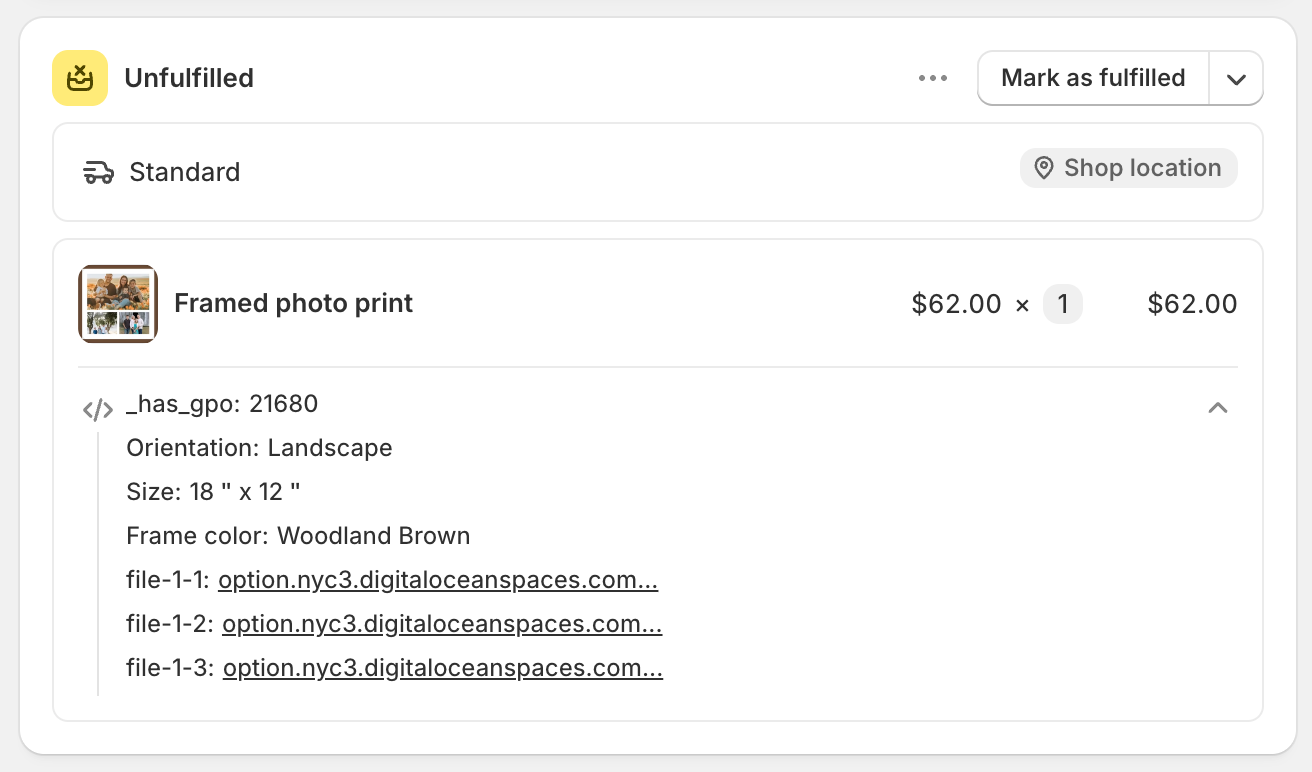
Option values are attached to the cart line as **line item properties**, which is Shopify's own mechanism for custom order details. Your options appear anywhere Shopify already displays line item properties:

<table><thead><tr><th width="290">Place</th><th>Shows</th></tr></thead><tbody><tr><td>The cart page</td><td>Each option's <strong>Name</strong> and the customer's value, under the item</td></tr><tr><td>Checkout</td><td>The same</td></tr><tr><td>The order in Shopify admin</td><td>The same, per line item</td></tr><tr><td>Order confirmation emails</td><td>Usually, depending on your notification templates</td></tr><tr><td>Uploaded files</td><td>As links, so your team can download the originals</td></tr></tbody></table>

The label displayed is the option's **Name**, not its Label. This is why the Name matters: `Size: 18" x12"` tells your team what to do, and `Frame color: Wooodland Brown` does not. See [Label and Name](/options/option-types/shared-settings/labels-and-visibility.md).

<figure><img src="https://3141646361-files.gitbook.io/~/files/v0/b/gitbook-x-prod.appspot.com/o/spaces%2FkMyxhAk2ZlJa4wZQGfBI%2Fuploads%2Fgit-blob-190b49ab9bf9ac90edd9f1b844030b3ce7a2dd93%2Forder.png?alt=media" alt="An order in Shopify admin showing a line item with its option details listed underneath"><figcaption><p>Option details reach the order with no configuration.</p></figcaption></figure>

## Where they need a small addition

Invoices, packing slips, and notification emails use templates you control. If your template does not already print line item properties, add a small snippet to it.

Each of these has its own page, with the exact template, the download link, and the screenshots for that screen:

<table data-view="cards"><thead><tr><th></th><th></th><th data-hidden data-card-target data-type="content-ref"></th></tr></thead><tbody><tr><td><strong>Order invoice</strong></td><td>Printed invoices from Shopify's Order Printer app.</td><td><a href="/options/storefront-display-and-design/show-options-on-orders/order-invoice.md">Display option on order invoice</a></td></tr><tr><td><strong>Packing slip</strong></td><td>Order Printer, or Shopify's own packing slip template in Settings.</td><td><a href="/options/storefront-display-and-design/show-options-on-orders/packing-slip.md">Display options in packing slip</a></td></tr><tr><td><strong>Confirmation email</strong></td><td>The email your customer receives after placing an order.</td><td><a href="/options/storefront-display-and-design/show-options-on-orders/order-confirmation-email.md">Display options in confirmation email</a></td></tr><tr><td><strong>Staff order notification</strong></td><td>The New order email you and your staff receive.</td><td><a href="/options/storefront-display-and-design/show-options-on-orders/staff-order-notification.md">Display option in staff order notification</a></td></tr></tbody></table>

The snippet is slightly different on each page, because invoices and packing slips loop over `line_item` while the notification emails loop over `line`. Use the one on the page for the template you are editing.

Whichever you use, the snippet does two things:

* **It skips properties whose name starts with an underscore.** Those are the app's internal properties, which link add-ons to their parent item and carry pricing data. Your team does not need to read them. See [How it works](/options/reference/how-it-works.md).
* **It displays uploaded files as links** rather than as long addresses, so a packing slip stays readable.

{% hint style="info" %}
The snippet must go **inside** the template's loop over line items, where `line_item` or `line` exists. Outside that loop, it displays nothing.
{% endhint %}

{% hint style="warning" %}
These templates are your store's own paperwork and emails. Copy the existing template somewhere safe before you change it, so you can restore it.

If you have already customized a template, do not paste the full code over it. Merge the snippet into what you have.

If you would rather not edit them yourself, support can supply ready-made versions of these templates. See [Contact support](/options/help/contact-support.md).
{% endhint %}

If you use a different packing slip, invoice, or fulfillment app, the same approach works in any Liquid template where the line item is in scope.

## Alternative: use an automation

If you would rather not edit templates, a [workflow](/options/automations/automations.md) produces much of the same result without any Liquid:

<table><thead><tr><th width="290">Workflow</th><th>Result</th></tr></thead><tbody><tr><td><a href="/options/automations/email-notification.md">Email notification</a></td><td>Emails you every order with its options, in a format you control</td></tr><tr><td><a href="/options/automations/update-order-notes.md">Order notes update</a></td><td>Writes the options into the order's notes — and the note already appears on packing slips, invoices, and emails in most templates</td></tr><tr><td><a href="/options/automations/update-order-tags.md">Order tags update</a></td><td>Tags the order by the option chosen, so you can filter and route orders</td></tr></tbody></table>

**Order notes update** is the most useful of these. Most templates already print the order note, so writing the options into the note puts them on your paperwork without editing a template.

## Notes

* Option details on an order are a record of that order. Renaming an option later does not change orders that have already been placed.
* Uploaded files stay available from the order in Shopify admin.
* Add-on products appear as their own line items unless you merge them. See [Merge main product and add-ons](/options/add-on-pricing/merge-as-bundle.md).
* Properties whose name begins with an underscore are internal to the app. Do not print them or build processes around them.
