
Contact support
Reach the Globo support team through the Contact us form in the app, live chat or email, and send the details that help us solve your problem fast.
The Globo support team helps you set up Globo B2B Bulk Order and fix problems on your store. You can send a request from the Contact us page in the app, chat with us from the Dashboard, or email us. We reply by email.
Before you write, check Troubleshooting. Most display problems come from the app embed being off, a form in Draft, or visibility rules that don’t match the page or the buyer.
Send a request from the app
-
Open Contact us
In Shopify admin, go to Apps > Globo B2B Bulk Order, then click Contact Us in the app navigation. You can also click Contact support in the Dashboard’s Help and resources section.
The Contact us page opens on the Contact support form: Tell us what’s going on and our team will get back to you by email.
-
Choose a topic and an issue
Under What do you need help with?, click the topic that fits best. The other topics hide, and the rest of the form appears. To pick another topic, click Change topic.
Then choose the closest match in Which issue best describes it?. If none fits, choose Other / I’m not sure. The full list is in Topics and issues.
-
Check your name and email
Your name and Your email are filled in with your store owner’s name and your store email. Change them if needed. Our reply goes to the address in Your email.
-
Tell us where to look
These fields are optional, but they let us check the problem without asking you first:
- Page URL: the storefront page where you see the problem, for example
https://your-store.com/pages/quick-order. - Collaborator request code: lets us request access to your store if we need to look at your theme or settings.
- Store password: the password visitors enter to open your online store, if it’s password protected.
See Collaborator request code and store password for where to find them.
- Page URL: the storefront page where you see the problem, for example
-
Describe the issue and add screenshots
In Describe your issue, write what happened and what you expected. Name the tool (Quick Order form, Variant Table or Collection Quick Order) and the form, and the steps that lead to the problem.
Under Screenshots or video, drop files on the upload area or click it to choose them. You can attach images and videos only. The note under the area sets the limit: Up to 5 files, 7 MB in total. Each file shows with its name and size. Click its × to remove it. For a longer screen recording, paste a link to it in your message instead.
-
Send
Click Send. A green banner confirms it: Thanks for your message. We’ll reply to {{email}} as soon as we can., with your email address in place of
{{email}}.The form then clears, except Your name and Your email, so you can send another request.
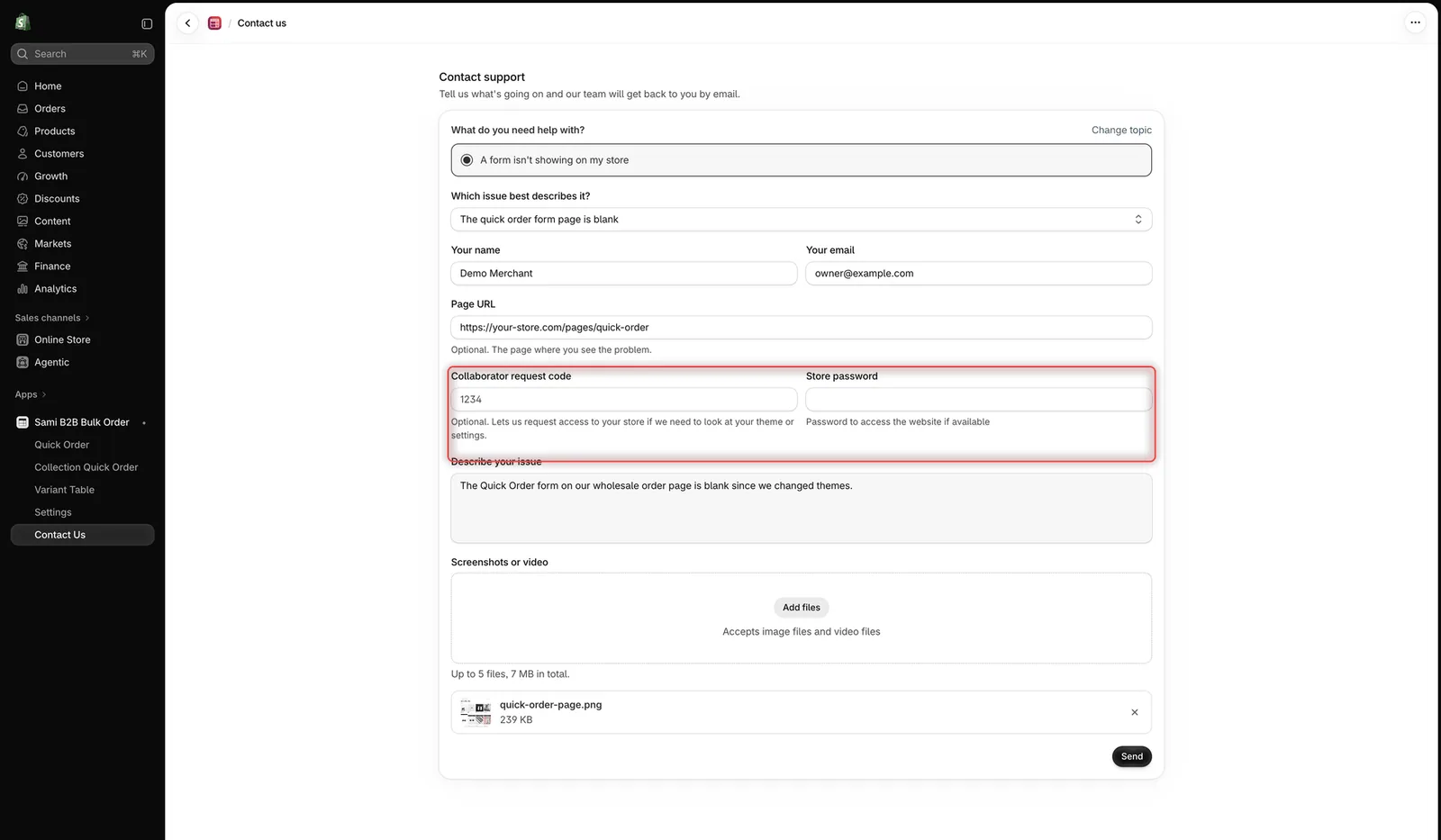
Pick a topic and an issue, then fill in the details and click Send.
Topics and issues
| Topic | Issues you can choose |
|---|---|
| A form isn’t showing on my store | The quick order form page is blank, The variant table doesn’t show on product pages, Collection quick buy doesn’t show on collection pages, The app embed is on but nothing shows, It stopped showing after a theme change, Other / I’m not sure |
| Add to cart and checkout | Products aren’t added to the cart, The cart has the wrong quantities or variants, Prices or discounts look wrong, The cart doesn’t update after adding, Other / I’m not sure |
| Products, search and import | Some products or variants are missing, Search doesn’t find products, A CSV or PDF import doesn’t match my products, Stock levels look wrong, Other / I’m not sure |
| Form design, layout or translations | A column or the layout looks wrong, It looks wrong on mobile, Translations or languages, I’d like a custom style, Other / I’m not sure |
| Who sees a form, and where | The form shows to the wrong customers, A customer tag rule isn’t working, The form shows on the wrong pages, Other / I’m not sure |
| Theme and other apps | It conflicts with another app, My theme isn’t fully supported, It slows down my store, Other / I’m not sure |
| Something else | Help setting up the app, Report a bug, Request a feature, Other / I’m not sure |
Collaborator request code and store password
Many problems depend on your theme, so we often need to see your store the way you do. These two fields save a round of emails.
Collaborator request code. With this 4-digit code, we can send a collaborator request to your store from our Shopify Partner account. Nothing changes until you accept the request in your Shopify admin, where you see which permissions we ask for. To find the code, go to Settings > Users (or Users & permissions) > Security in your Shopify admin, and click the code to copy it. See Shopify’s guide to collaborator accounts.
Store password. If your online store is password protected, for example while you set it up or because only approved buyers can enter, we need its password to open the storefront page. The field shows the password as you type it.
If your message doesn’t send
The page moves to the first field with a problem and shows a message under it:
| Message | What to do |
|---|---|
| Choose what you need help with. | Click a topic under What do you need help with? |
| Choose the issue that best describes it. | Pick an issue in Which issue best describes it? |
| Enter your name. | Fill in Your name. |
| Enter your email address. / Enter a valid email address. | Enter an email address you can receive replies at. |
| Describe your issue. | Write a few words in Describe your issue. |
| Only images and videos can be attached. | Remove other file types, such as PDFs or spreadsheets. To share an order file, paste a link to it in your message, or email it to us. |
| You can attach up to 5 files. | Remove some files. |
| Attachments can add up to 7 MB. For a longer video, paste a link in your message. | Remove or shrink files, or paste a link instead. |
| Those files are too large to send. Remove some, or paste a link in your message instead. | Remove some files and click Send again. |
| A file didn’t upload. Try a smaller one, or paste a link in your message. | Replace the file with a smaller one, or paste a link. |
If a short message Something went wrong, please try again. appears at the bottom of the screen, wait a moment and click Send again. Your text stays in the form. If it keeps failing, use live chat or email.
Chat with us
On the Dashboard, scroll to Help and resources and click Live chat. A chat window opens inside the app, where you can talk to the support team. If chat isn’t available, the button opens the Contact us page instead.

Start a chat with the Live chat button in Help and resources.
Email us
Write to [email protected]. Include your store’s .myshopify.com address, so we know which store you mean.
What to include
The more of these you send, the faster we can help:
- your store’s
.myshopify.comaddress (email only; the app form sends it for you) - which tool is affected, and the form or table name as it appears in the app
- the storefront page URL where you see the problem
- what you did, what you expected, and what happened instead
- screenshots or a short screen recording, including any message buyers see
- for visibility problems: the customer tags or login status you tested with
- for import problems: the file or list the buyer used (as a link or by email)
- your theme’s name, and whether you changed themes recently
Next steps
Was this helpful?
Thanks for your feedback! Tell us what was missing
Report an issue