For the complete documentation index, see llms.txt. This page is also available as Markdown.

Font picker

Let customers choose the lettering, from a list of Google fonts and your own uploaded fonts, each drawn in its own typeface.

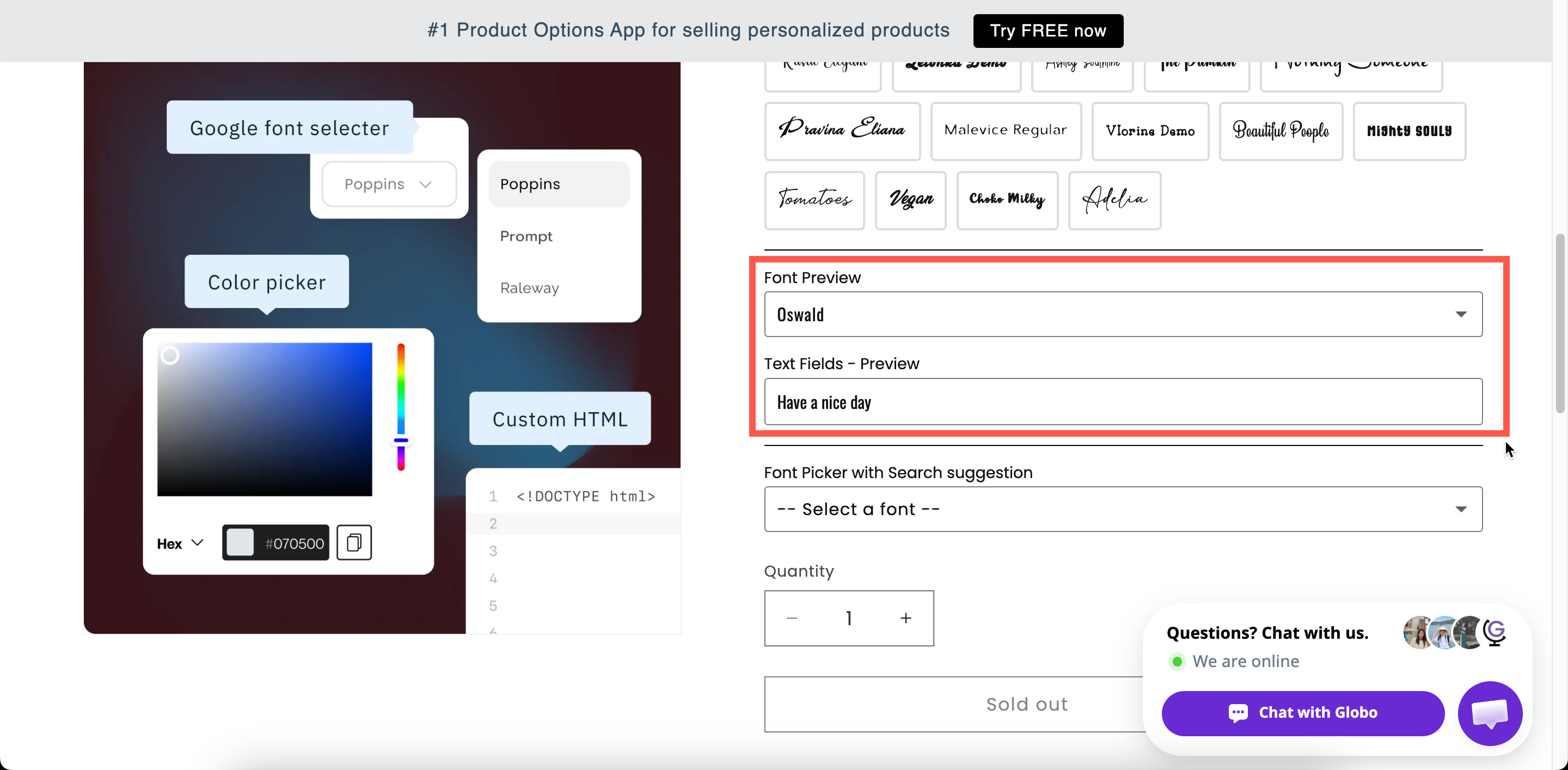
A list of fonts that lets customers choose the typeface for their text. With Font preview enabled, each font name is displayed in its own typeface so customers can see what they are choosing.

Use it when the customer's text will be produced in a font they select, such as for engraving, embroidery, printed names, or signage.

What customers see

A dropdown or a row of buttons listing your fonts. With Font preview on, each entry is rendered in that font.

An open font picker on a storefront product page with each font name drawn in its own typeface
With Font preview on, customers see the lettering rather than imagining it.

Basic

Setting
What it does

Customer-facing text, and the name on the order.

Blocks add to cart until a font is chosen.

Hides the label.

Google fonts

The Google fonts offered. Starts with Roboto, Open Sans, Montserrat, Poppins, and Oswald. Up to 30 fonts.

Custom fonts

Fonts you uploaded yourself, in Settings > Settings > General > Custom fonts. Several can be offered.

The unselected prompt. Starts as -- Select a font --.

Guidance that stays visible.

Preselects a font.

Show or hide based on other choices.

Google fonts and Custom fonts

The two lists are configured separately and are combined into one list for the customer.

List
Where the fonts come from

Google fonts

A searchable picker of Google's font library. Add up to 30. The picker tells you when you have reached the limit.

Custom fonts

Font files you uploaded to the app. Upload them once in Settings, then select them here. See Custom fonts.

Advanced

Setting
What it does

Style

Dropdown or Button. Dropdown is a list; Button shows the fonts as a row of tappable buttons.

Adds a search box. Worth turning on for a long list.

Draws each font name in that font.

Select text box

Which text option the font preview applies to. Appears once Font preview is on.

Where the help text sits.

An icon or text at the start of the field.

Styling hook and field width.

Font preview and Select text box

Turn on Font preview and set Select text box to your text option. The customer's own words are then displayed in the font they hover over or select, rather than only the font names.

Combine this with the Personalizer on the text option, and the words are also displayed on the product photo in that font.

Add-on pricing

Font picker cannot have a price, because a font is a presentation choice rather than a stocked item.

If a particular font costs you more, for example a licensed script or a font that needs hand-finishing, put the charge on a separate Switch or Radio button and use conditional logic to display it when that font is selected.

Personalizer

The Personalizer is not set on the picker. It belongs to the text option, and the font choice is applied to it.

To let customers choose a font and see their text in it on the product photo:

1

Add a text option and turn on its Personalizer

Configure it as a text layer. See Text layers.

2

Set its Font family

Select Google or Custom and choose the font. This is the starting font. See Fonts.

3

Add a Font picker for the customer's choice

Turn on Font preview and set Select text box to the text option.

Examples

Five engraving fonts

Setting
Value

Label / Name

Engraving font

Google fonts

Five fonts your machine can cut

Style

Button

Font preview

On, pointing at Engraving text

Default value

Your most popular font

Required field

On

A long list, searchable

Thirty Google fonts, with Style set to Dropdown, Search suggestion on, and Font preview on.

Your own brand fonts

Uploaded custom fonts only, no Google fonts, and Style set to Button so all three are always visible.

Notes

  • Available on the Advanced plan. Custom fonts may not be available on all plans.

  • Works in Shopify POS.

  • Up to 30 Google fonts per option.

  • This type cannot have an add-on price.

  • There is no Out of stock options setting, because fonts have no inventory.

  • The browser loads each font in the list when previewing, so a long list takes longer to display. Keep the list short.

  • The selected font name is included in the order, so your team knows which font to use.

Last updated

Was this helpful?