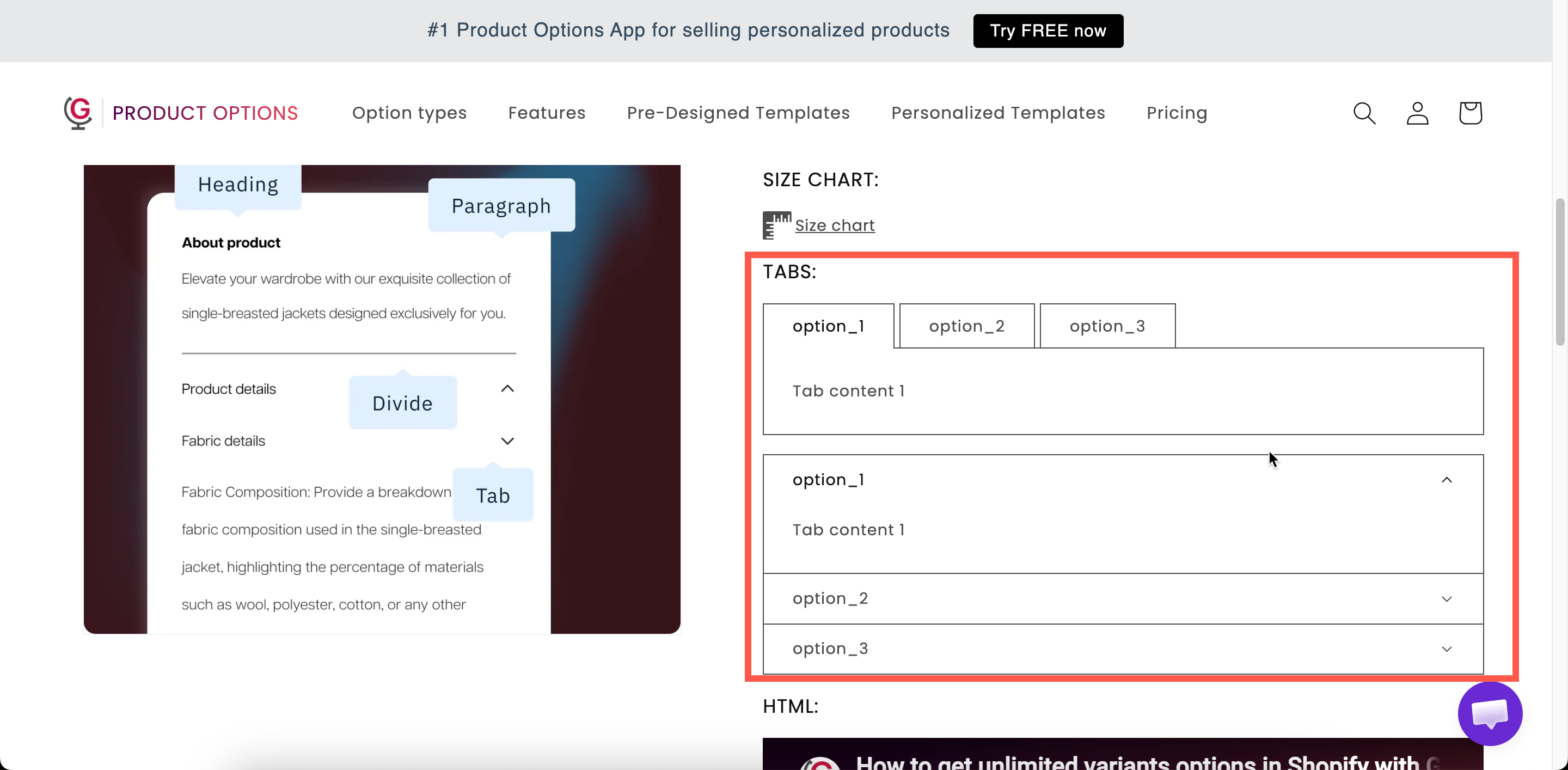
Tabs
Organize multiple content panels into tabs to keep care instructions, delivery details, and return policies in one place without making the page longer.
Several content blocks, with one visible at a time. Customers select a tab to switch between panels.
Use tabs when you have three or four types of information to display but want to keep the page compact, such as care instructions, delivery details, return policies, or materials.
What customers see
A row or column of tab titles with one panel open. Selecting another title switches panels.

Settings
Tabs
The tabs themselves. Each has a title and its own rich-text content.
Horizontal — titles in a row above the content. Vertical — titles in a column beside it. Starts on Horizontal.
Show or hide the whole tab set.
Styling hook and width.
Building the tabs
Tabs are managed in a values table, in the same way as a selection type's option values, but each entry is a panel rather than a choice.
Add a tab
Add another tab below the table.
Set a tab's title
The value field on its row.
Write a tab's content
Open the content editor on that row. Rich text, like a Paragraph.
Reorder tabs
Drag the rows. The first tab is the one open by default.
Delete a tab
The remove action on its row.
Start over
Delete all tabs, which asks you to confirm.
Tab titles follow the same character rules as option values. The characters , : " ' and | are not allowed. See Working with option values.
Horizontal or vertical
Horizontal
Two to four tabs with short titles
Long titles wrap and the row gets messy on mobile
Vertical
Longer titles, or five or more tabs
Takes horizontal space, so it needs a wide column
Keep titles to one or two words. Care, Delivery, and Returns read better than How to care for your item.
Tab order
The first tab is open when the page loads, so put your most important content there. Customers may not notice the other tabs. If Delivery is first, for example, many customers never open Care.
Tabs, modal, or paragraph?
One short piece of text everybody should read
One longer piece most customers will skip
Tabs
Several pieces, at least one of which most customers will read
Examples
Care, delivery, returns
Tabs
Care, Delivery, Returns
Direction style
Horizontal
First tab
Care — the one customers ask about most
Materials and specification
Two tabs, Materials and Specification, each with a short formatted list. Use Vertical if the titles are longer.
Personalization guidance
Tabs How it works, Lead times, and What we cannot engrave, displayed by conditional logic only when the customer has chosen to personalize.
Notes
Available on the Advanced plan.
Works in Shopify POS.
Titles and content can be translated for each storefront language. See Translate option content.
Tab colors are store-wide. Set Tab title, Tab title active, Tab title hover, Tab content, and Tab border in Settings > Design. See Colors.
There is no limit on the number of tabs, but more than five makes the tab row difficult to use. For more content than that, use the Vertical layout or split it across several sections.
Last updated
Was this helpful?