
Group by tag
Create groups in bulk from the tags you already use — one tag, or a combination of tags such as series + hair type.
If your products already carry a tag that names their family — style-1234, Series_Color Shine — the app can create one group per tag, in bulk. When one tag isn’t enough to tell families apart, combine it with a second tag.
Start it from Groups → Create group → Group by tag (in the Group by a rule row), then click Continue.
Step 1 — Tell the app which tag identifies a group
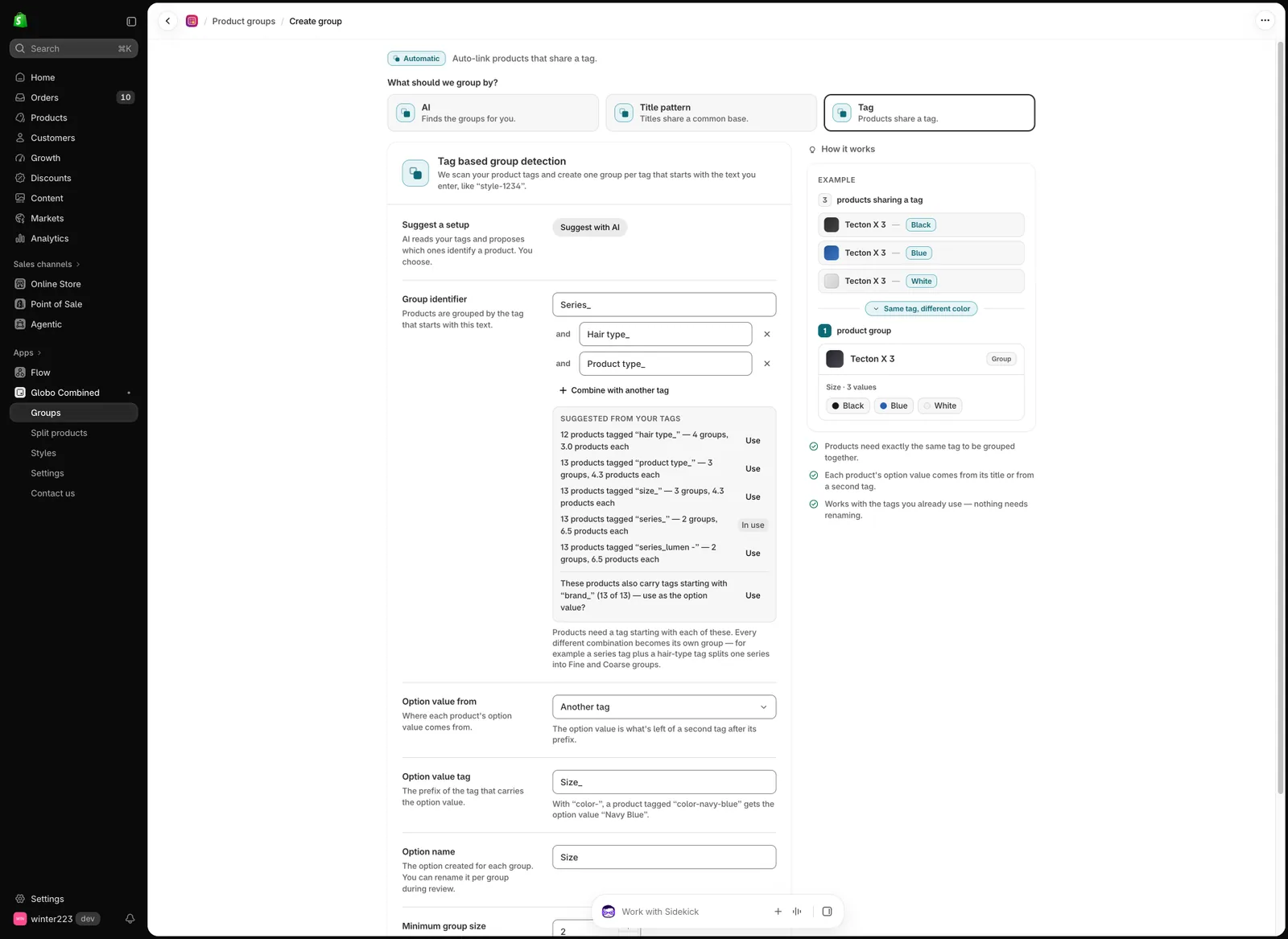
Combine tags so each different combination becomes its own group.
| Setting | What it does |
|---|---|
| Group identifier | The text the family tag starts with, e.g. style-. Every different matching tag becomes its own group, so style-1234 and style-1290 are two groups. Case is ignored, but style-1234 and style_1234 are different tags. |
| Combine with another tag | Adds a second tag the products must also have. Every different combination becomes its own group — see the example below. |
| Option value from | Product title — the part of the title that differs (e.g. 300ml). Another tag — the rest of a second tag after its prefix: with Option value tag color-, a product tagged color-navy-blue gets the value Navy Blue. |
| Separator | Shown when the value comes from the title: how titles are split into base name and value. Auto-detect tries common separators, then falls back to word-based matching. |
| Option name | The option created for every group (e.g. Size). You can rename it per group during review. |
| Minimum group size | Tags with fewer products are skipped. |
| Product filters | Optionally limit the scan by product status, collection, or vendor. |
Under the identifier, Suggested from your tags lists prefixes the app found in your catalog, with how many groups each would create. Click Use to fill one in.
Example: one series, several hair types
Your products share a series tag, but each series has Fine and Coarse versions that must stay apart:
| Product | Tags |
|---|---|
| Color Shine Shampoo – Fine Hair 300ml | Series_Color Shine, Hair type_Fine |
| Color Shine Shampoo – Fine Hair 1000ml | Series_Color Shine, Hair type_Fine |
| Color Shine Shampoo – Coarse Hair 300ml | Series_Color Shine, Hair type_Coarse |
| Color Shine Shampoo – Coarse Hair 1000ml | Series_Color Shine, Hair type_Coarse |
With only Series_ as the identifier, all four land in one group — and two products would share the value 300ml. Set Group identifier to Series_, click Combine with another tag, and enter Hair type_. You get two groups, each with Size: 300ml · 1000ml:
- Color Shine + Fine
- Color Shine + Coarse
Add a third tag (for example Product type_ — Shampoo vs Conditioner) if shampoos and conditioners of the same series must also stay apart.
Let AI suggest the setup
Not sure which tags to combine? Click Suggest with AI. AI reads a summary of your tags and proposes up to three setups — which prefixes to combine and where the option value comes from — each with the number of groups and products it would create. The Best match is listed first. Click Apply to fill in the form, then continue as usual.
AI only proposes the setup; the grouping itself is done by the rules above, across your whole catalog. If AI finds no tags that identify your products, try Group by title pattern or Group with AI.
Click Analyze products. Nothing is created yet.
Step 2 — Review the groups
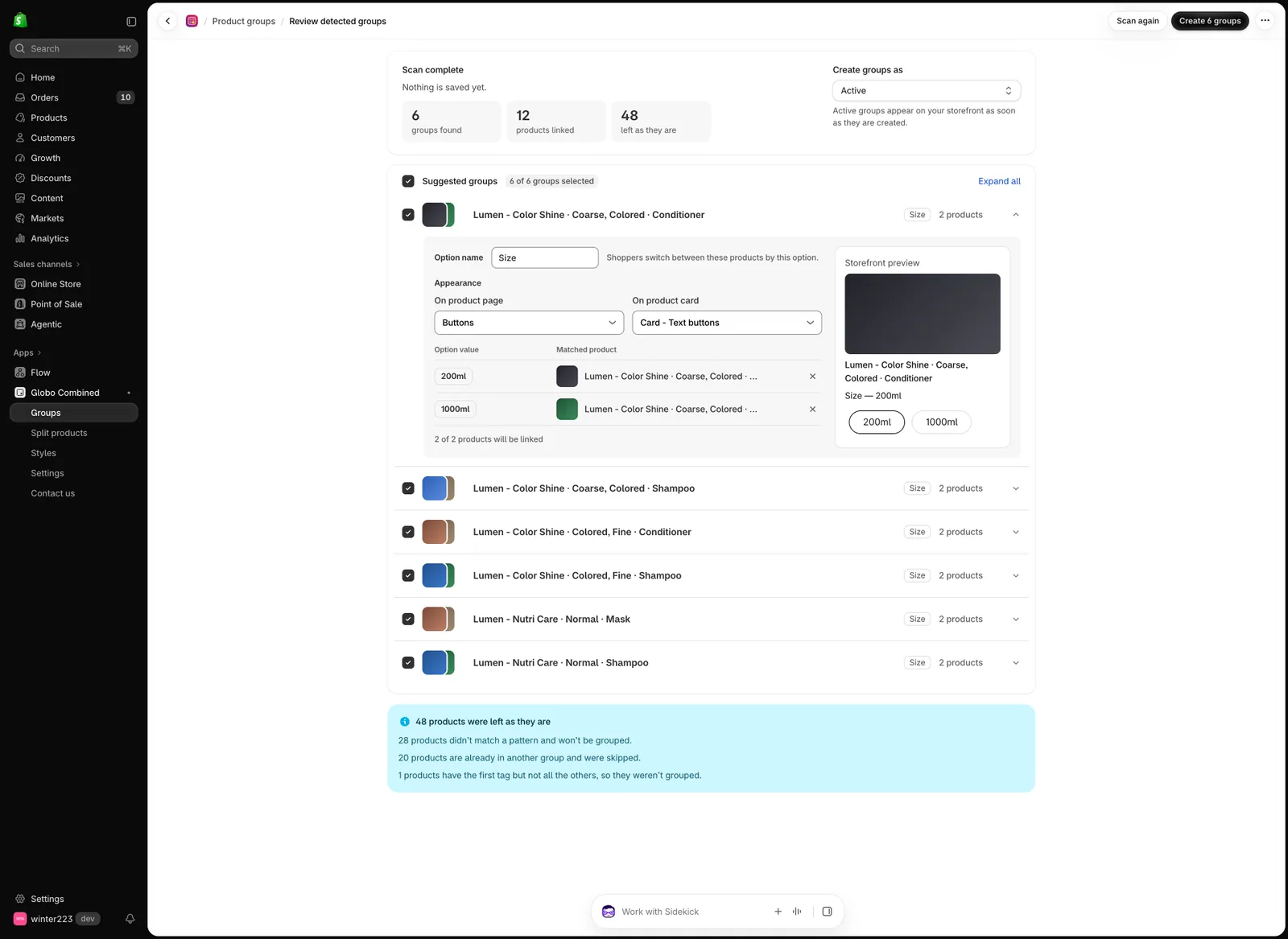
Fine and Coarse versions of the same series come out as separate groups, each with its own Size picker.
The review works like the other bulk flows:
- Select or deselect groups, rename the option, and exclude wrongly matched products.
- Pick the Appearance for the product page and product card, with a Storefront preview.
- Choose Create groups as Active or Draft.
- A banner explains why products were left out — for example tags with too few products, products missing one of the combined tags, or two products with the same option value.
If a tag almost matches a group’s tag (a different separator or an extra space), the group offers to Also add those products. Nothing is merged unless you tick it.
Step 3 — Create
Click Create N groups. A summary lists the groups created, with shortcuts to Customize appearance and View product groups.
Run it again when you add products
Scan again later with the same setup and the review recognises groups it created before: +N new products are added to them and unchanged groups are marked No change. Products are never removed automatically — if a product no longer carries the tag, the review tells you and leaves it for you to remove.
Related
- Group with AI — when tags and titles are inconsistent.
- Group by title pattern
- Create a multiple-options group
Was this helpful?
Thanks for your feedback! Tell us what was missing
Report an issue