
Group with AI
Let AI find the products that are the same item in different options, review its suggestions, and create the groups in bulk.
AI reads your product titles, tags and vendors, and suggests which products are the same item in a different color, size or material. It works even when your titles don’t follow a pattern — Aurora Wool Coat – Charcoal, Aurora Coat (Ivory) and Sand Aurora Coat can still end up in one group.
Nothing is created until you’ve reviewed every suggestion.
Start it from Groups → Create group → Group with AI (in the Group by a rule row), then click Continue.
Step 1 — Choose what to scan
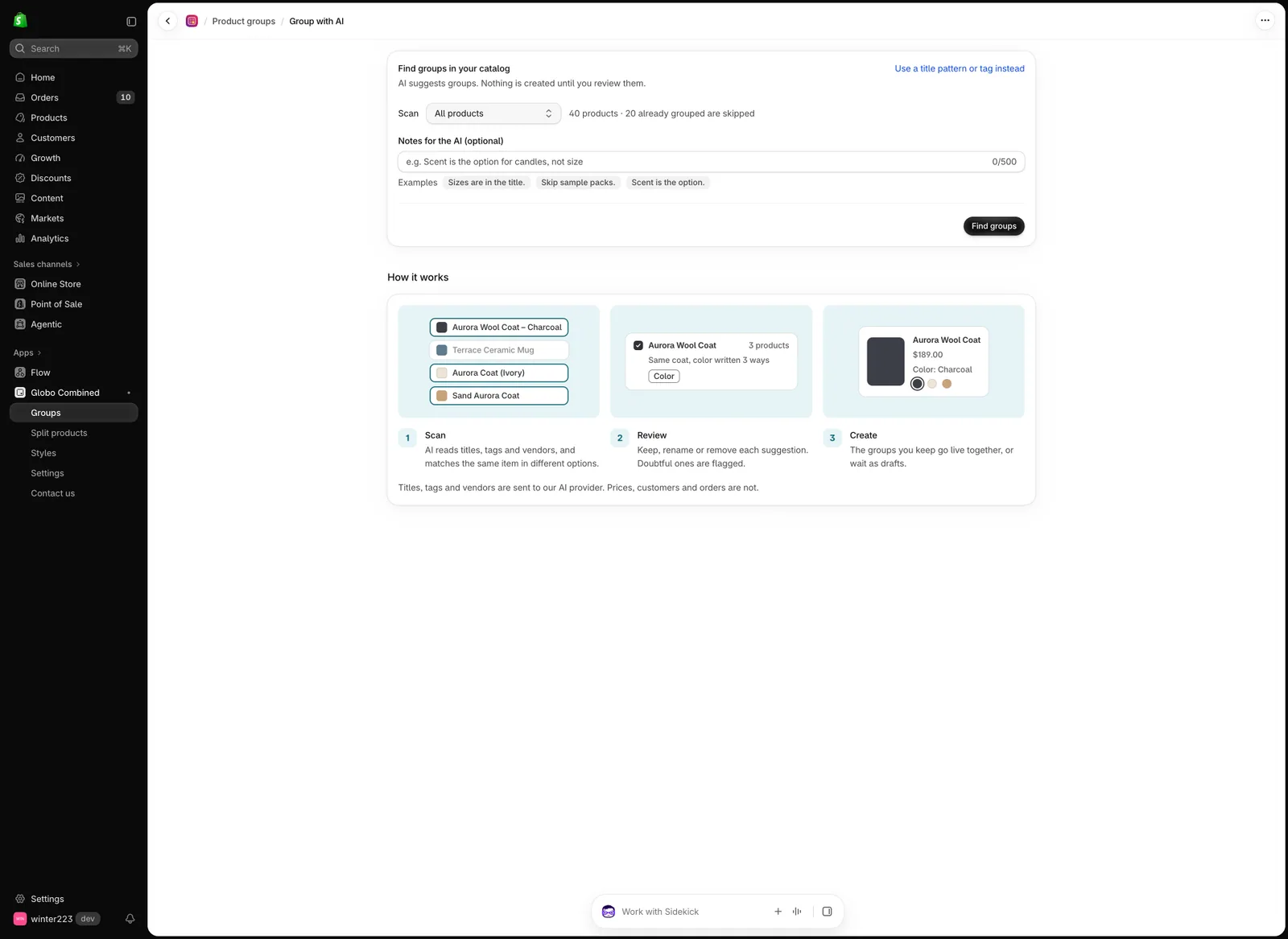
Choose what to scan and, optionally, tell the AI how your products vary.
| Setting | What it does |
|---|---|
| Scan | All products, A collection, or A vendor. Products that are already in a group are skipped automatically. |
| Notes for the AI (optional) | Plain-language hints, up to 500 characters — for example Sizes are in the title., Skip sample packs. or Scent is the option. Click an example to add it. |
Click Find groups. Large catalogs are scanned in batches, keeping similar products together, so a scan can take a minute or two. You can Cancel at any time.
Step 2 — Review the suggestions
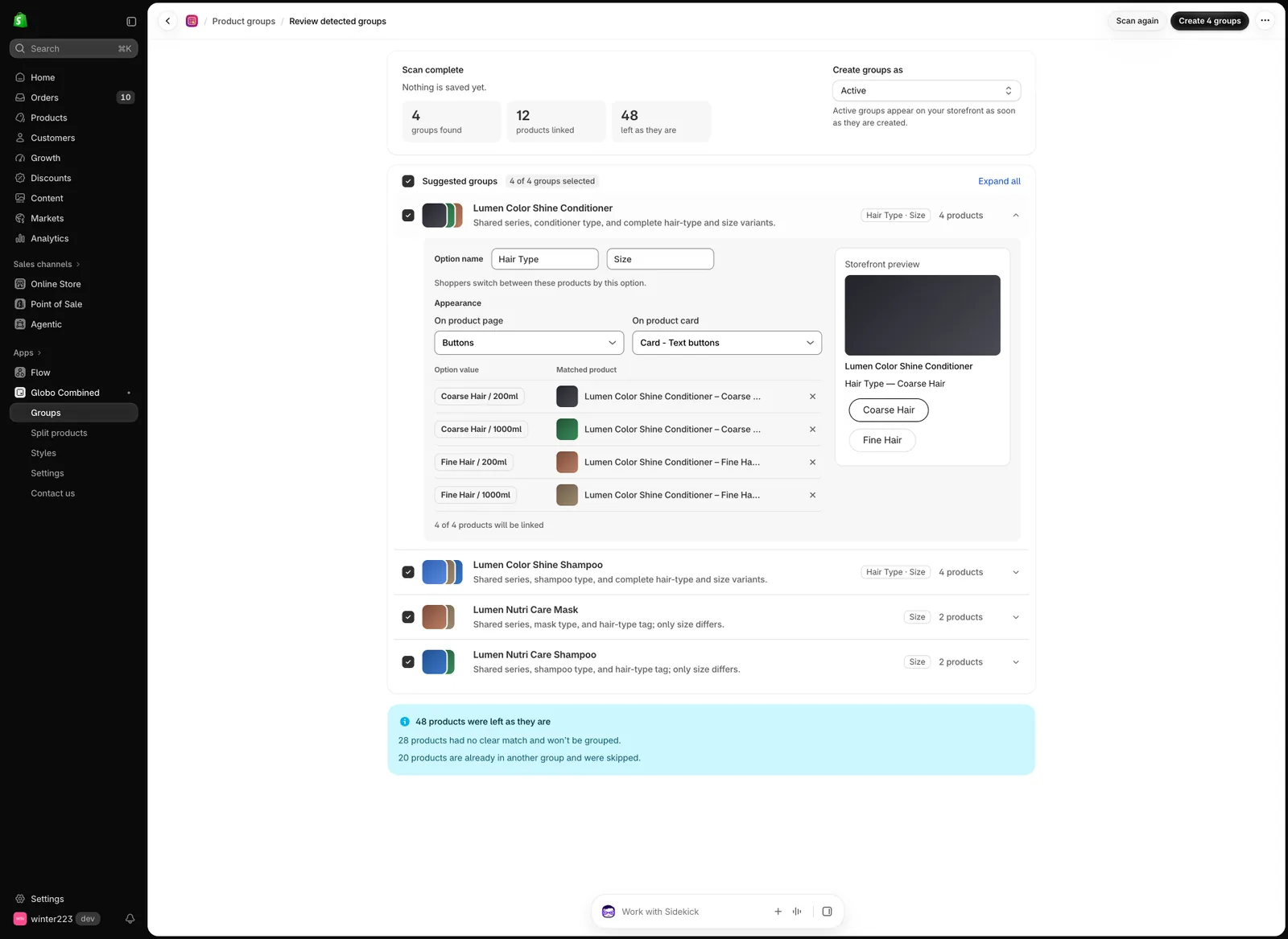
Every suggestion is reviewed before anything is created — here a two-option group (Hair Type · Size) is expanded.
The top of the screen sums up the scan: groups found, products linked, and products left as they are. A banner below the list explains why products were left out — no clear match, or already in another group.
Each suggestion shows the products the AI matched and a one-line reason. Click a group to expand it, then:
- Select or deselect the group. Only selected groups are created.
- Rename the option in Option name (for example Size instead of Volume).
- Pick its appearance for On product page and On product card — the same style picker as the group editor. Text values such as sizes start as buttons; picture values such as colors start as image swatches. The Storefront preview shows the result.
- Exclude a wrongly matched product with ✕, and Add back if you change your mind.
Groups marked Check this one are judgement calls — they’re listed first so you see them right away.
Groups with two options
When the same item comes in every mix of two options — say 5 colors × 4 sizes, one product each — the AI suggests one group with both options instead of a group per size. It’s created as a multiple-options group, and the review shows both options (Color · Size) with a name field for each and values like Ice / M.
Active or draft
Under Create groups as, choose Active (live on your storefront right away) or Draft (hidden from shoppers until you activate them).
Not happy with the result? Click Scan again to change the scan or your notes.
Step 3 — Create
Click Create N groups. When it finishes, a summary lists every group created and its status, with shortcuts to Customize appearance and View product groups.
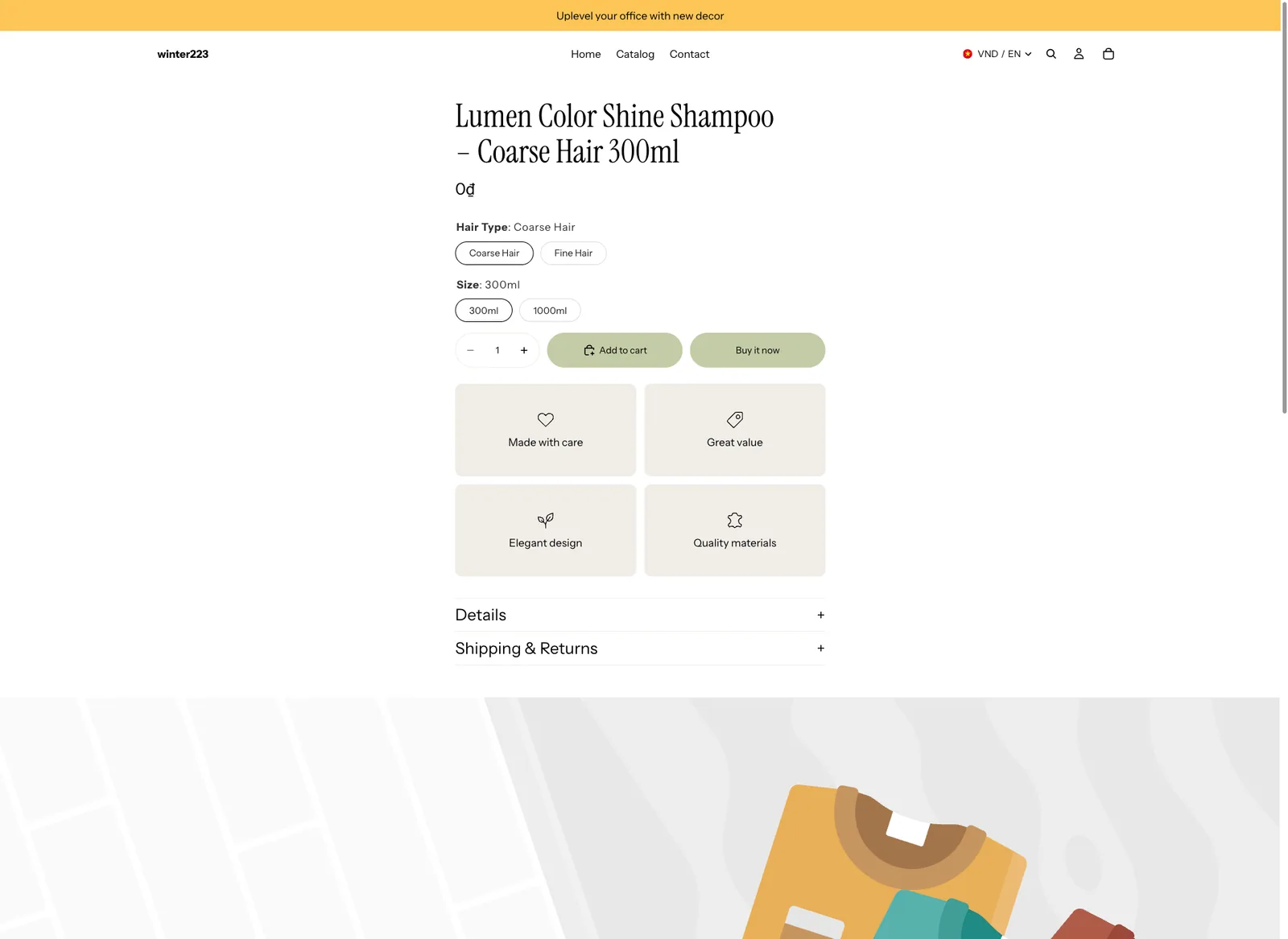
A two-option group on the storefront: shoppers pick Hair Type, then Size.
What is sent to the AI
Only product titles, tags and vendors are sent to our AI provider. Prices, customers and orders are never sent. See Permissions & data.
Related
- Group by tag — when your tags already identify each product family.
- Group by title pattern — when titles follow a fixed pattern like
Name – Color. - Group types
Was this helpful?
Thanks for your feedback! Tell us what was missing
Report an issue