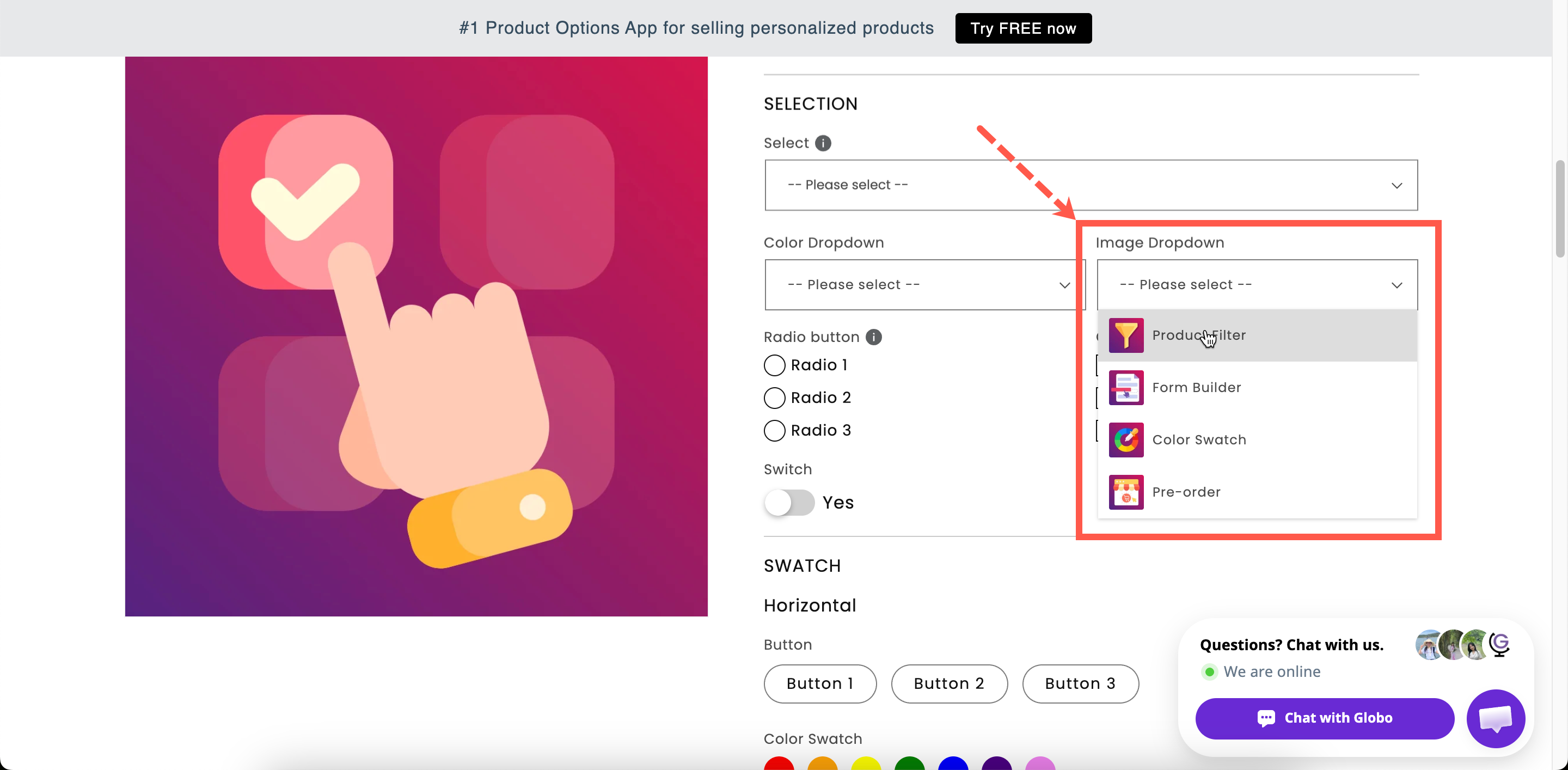
Each entry carries a picture, so a long visual list stays compact.
Each entry carries a picture, so a long visual list stays compact.
| Setting | What it does |
|---|---|
| Label / Name | Customer-facing text, and the name on the order. |
| Required field | Blocks add to cart until something is chosen. |
| Hidden label | Hides the label. |
| Option values | The choices, each with an Image column. Upload a picture, or reuse one of the product's own images. See Working with option values. |
| Allow multiple | Lets the customer choose several. |
| Min selections / Max selections | Shown once Allow multiple is on. |
| Placeholder | The unselected prompt. |
| Help text | Guidance that stays visible. |
| Default value | Preselects a value. |
| Conditional logic | Show or hide based on other choices. |
| Setting | What it does |
|---|---|
| Add-on quantity / Quantity | How the add-on scales with quantity. |
| Search suggestion | Adds a search box to the list. |
| Not allow deselect | Stops the customer clearing their choice. Single-select only. |
| Image display outside dropdown | Shows the chosen image beside the closed field, so the choice stays visible without reopening the list. Off by default. |
| Out of stock options | How sold-out entries look. |
| Help text position | Where the help text sits. |
| HTML class / Column width | Styling hook and field width. |
| Image dropdown | Image swatch | |
|---|---|---|
| Space used | One line, closed | A grid, always open |
| Names shown | Beside each picture | On hover |
| Search | Yes | No |
| Slider layout | No | Yes |
| Picture size | Small thumbnails | Adjustable, plus a zoom tooltip |
| Best for | Twenty or more designs | Under twenty, where the picture is the whole decision |
| Setting | Value |
|---|---|
| Label / Name | Print design |
| Option values | Thirty entries, each with its artwork image |
| Search suggestion | On |
| Image display outside dropdown | On |
| Required field | On |
| Personalizer | On, so the design appears on the product photo |