For the complete documentation index, see llms.txt. This page is also available as Markdown.

Where you can set add-ons

Option level or option value level. Where the Price field is on each option type, and what to do when a type cannot carry a price.

The location of the price field depends on the option type. Check the tables below before you look for a field that may not exist on that type.

Two levels

Level
Where the field is
Because

Option level

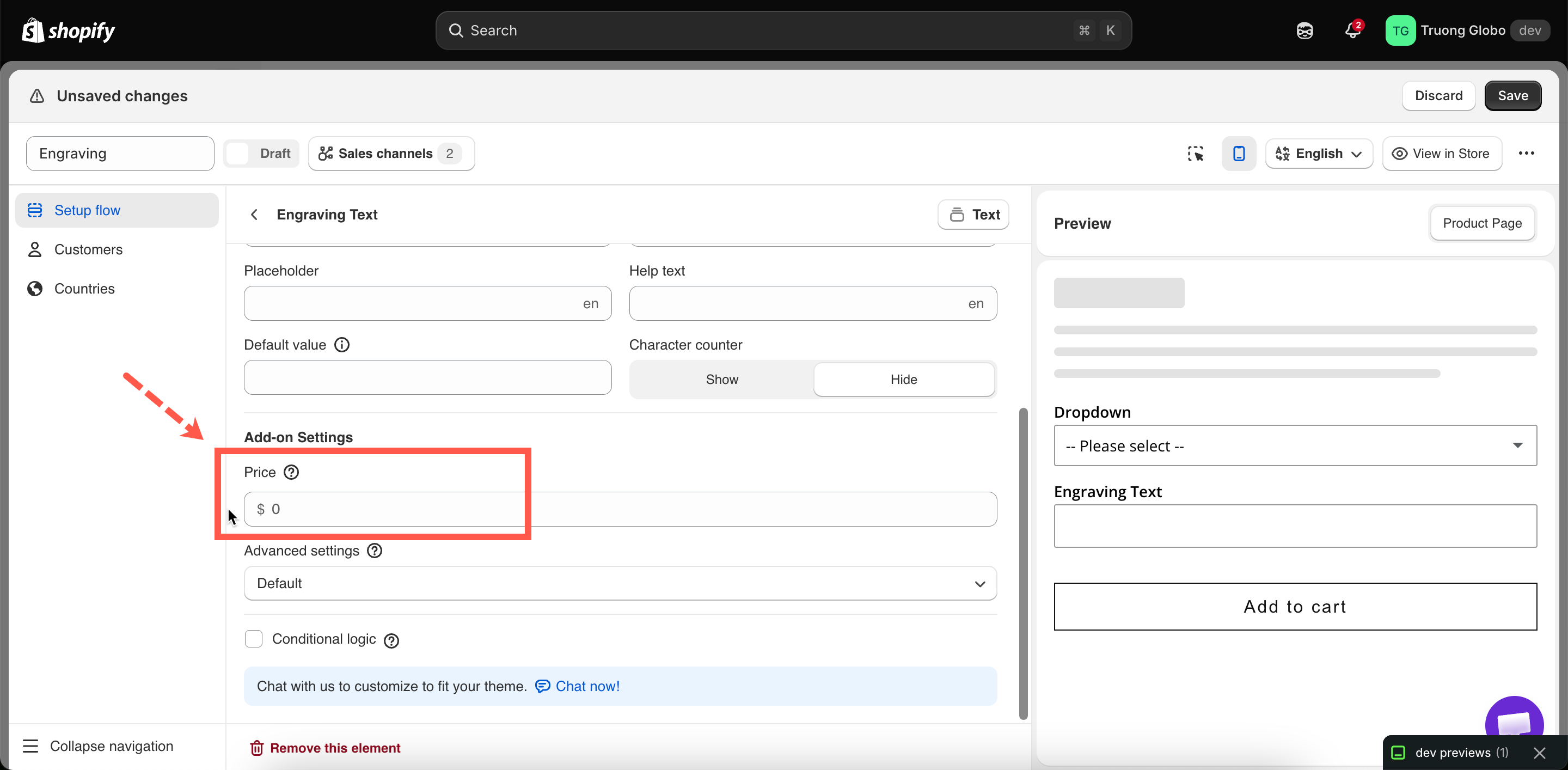
Basic, under Add-on Settings, labeled Price

The option has one answer, so one price

Option value level

The Price column in the option values table

Different choices usually cost different amounts

An option's Price field beside a values table with its own Price column
The price field sits on the option for input types, and on each value for selection types.
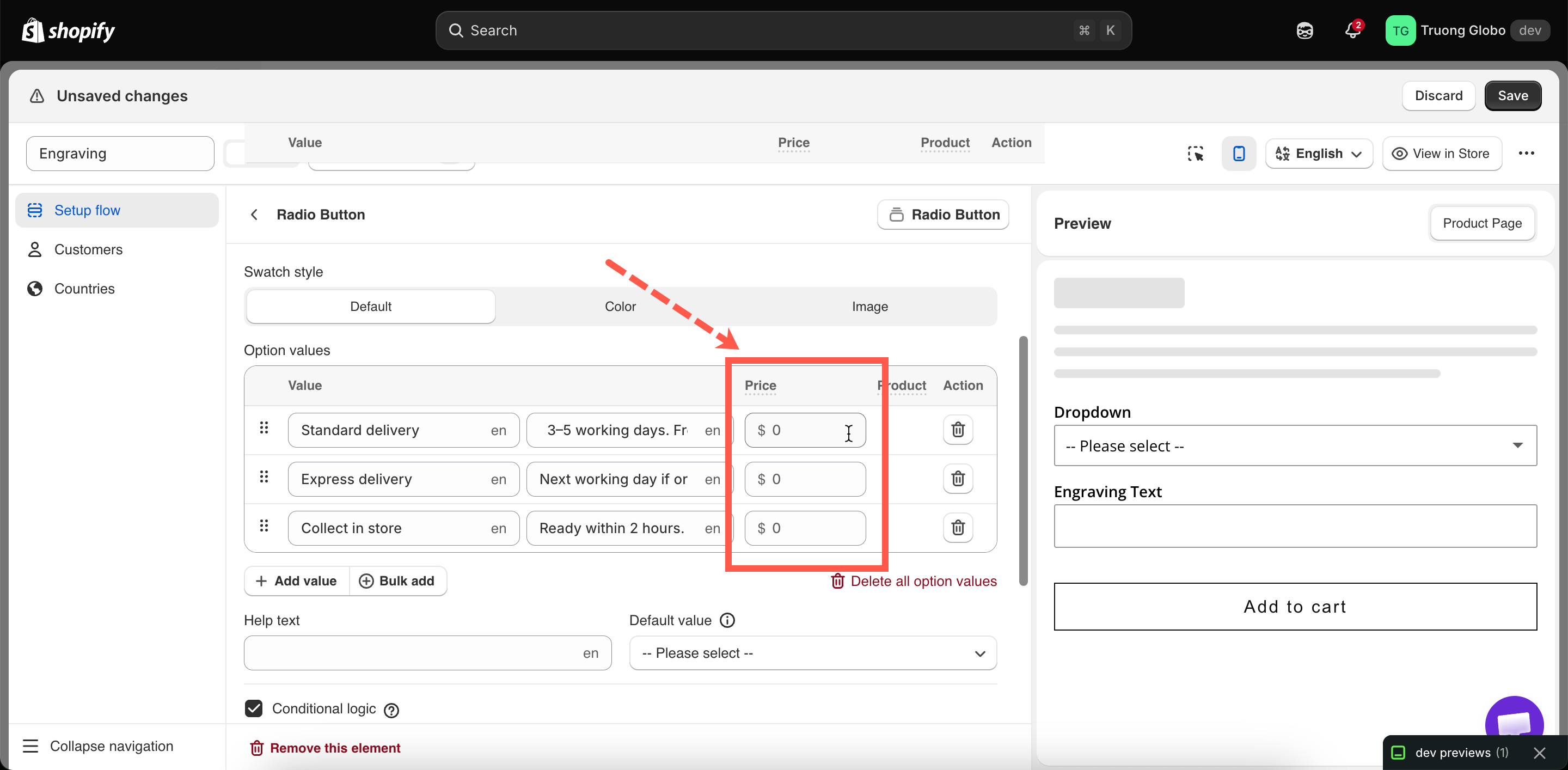
An option-level Price field beside an option values table with a Price column
Input types take one price; selection types take a price per choice.

By option type

Option level

These five option types have a single Price field for the whole option:

Type
Typical use

An engraving fee, flat or per character

A message printing fee

A per-unit charge driven by the number entered

One paid extra, on or off

A custom-color surcharge

Option value level

These nine option types take a price for each value, set in the values table:

Type
Typical use

Tiers or grades at different prices

Premium colors or designs

Service tiers

A menu of extras, each priced

Sizes or pack sizes at different prices

Standard colors free, premium ones charged

Values with no price are free. You can mix free and paid values in the same option, for example three free colors and two paid ones.

Each value can also use a different pricing mode. One value can link to an existing product, another can generate a product, and a third can use a plain price. The mode is set for each value, not for the option.

Its own arrangement

Type
How pricing works

An Add-on price field plus a Formula, so the price is calculated from the measurements. See Dimension add-on formula.

Cannot carry a price

Type
Why

Contact details, not paid choices

The customer makes no choice

A date is not a stocked item

An upload is not a purchase

Use Number if the value should drive a charge

A presentation choice

It navigates away rather than adding anything

All nine static types

They collect nothing

Charging for an option that cannot be priced

Some option types cannot carry a price, such as a date picker used for an express delivery fee, or a file upload with a setup fee. Use the following method:

1

Add a Switch or Checkbox next to it

Apply the price to this option. Use a Switch for a single charge, or a Checkbox for several.

2

Word it as the thing being paid for

For example, Express production (+$10.00) or Artwork setup fee. The label should make clear what the charge covers.

3

Reveal the unpriced option conditionally

Place the priced Switch above the unpriced option, then use conditional logic to display the date picker or upload field when the switch is on.

4

Or the other way round

You can also reverse this. For example, display a "rush order" switch only after the customer selects a date within the next three days.

Worked examples

A file upload with a setup fee

Option
Type
Price

Artwork setup

Switch

$15.00, One time charge

Your artwork

File upload

None. Shown when the switch is on

Colors, mostly free

An Image swatch with eight values. Five are free, and three use New product so each premium finish has its own inventory.

Engraving priced by length

A Text option with Price $0.50 and Add-on quantity set to Per character. Set a Max character value to limit the total charge.

Notes

  • The Add-on quantity dropdown that controls how a charge scales is always set at option level, even when the prices are set on the values. It applies to every value in that option.

  • Mixed quantity is the exception. It gives each value its own quantity field, and is available on multi-select options only. See Advanced add-on modes.

  • When a value is linked to a product, a Product column is added to the values table, with a link that opens the product in Shopify admin.

Last updated

Was this helpful?