
Percentage
Charge a share of the main product's price, with an optional minimum and maximum, without creating a Shopify product.
The Percentage mode charges a share of the main product’s price. A 15% protection plan adds $6.30 to a $42.00 wallet and $18.00 to a $120.00 bag. You enter one number, and the charge follows whichever product and variant the customer picks.
Like Fixed amount, it raises the price of the main product. No Shopify product is created or linked.
Use it for charges that should grow with the price of the item, such as protection plans, insurance, rush production, or a premium finish.
Steps
-
Open the price field
On an input type, that is Price in the Add-on card on the Basic tab. On a selection type, it is the Price cell on the option value’s row. See Where you can set add-ons.
-
Choose the Percentage tab
The Add-on Configuration dialog has four tabs. Percentage is the fourth.
Two notes appear at the top. The first confirms that the add-on is a percentage of the main product’s current selling price. The second warns that this add-on type is not supported on the POS channel.
-
Enter the percentage
Type the number without the
%sign, for example15. Decimals are accepted.The percentage must be greater than 0, or the dialog shows Enter a percentage greater than 0. and Select stays disabled. Above 100, the dialog warns This add-on costs more than the product itself. You can still save it. The warning is there to catch a typo such as
150instead of15. -
Optionally, limit the add-on amount
Select Limit the add-on amount to keep the charge between a floor and a ceiling. Most stores do not need this. Two fields appear, both in your store’s currency:
Field What it does Minimum amount The add-on never costs less than this. Leave it empty for no minimum Maximum amount The add-on never costs more than this. Leave it empty for no maximum With a minimum set, a line below the fields tells you where it takes over, for example On products under $33.33, the add-on is $5.00 instead of 15%.
The minimum cannot be higher than the maximum. If it is, the dialog shows Minimum must be less than or equal to maximum.
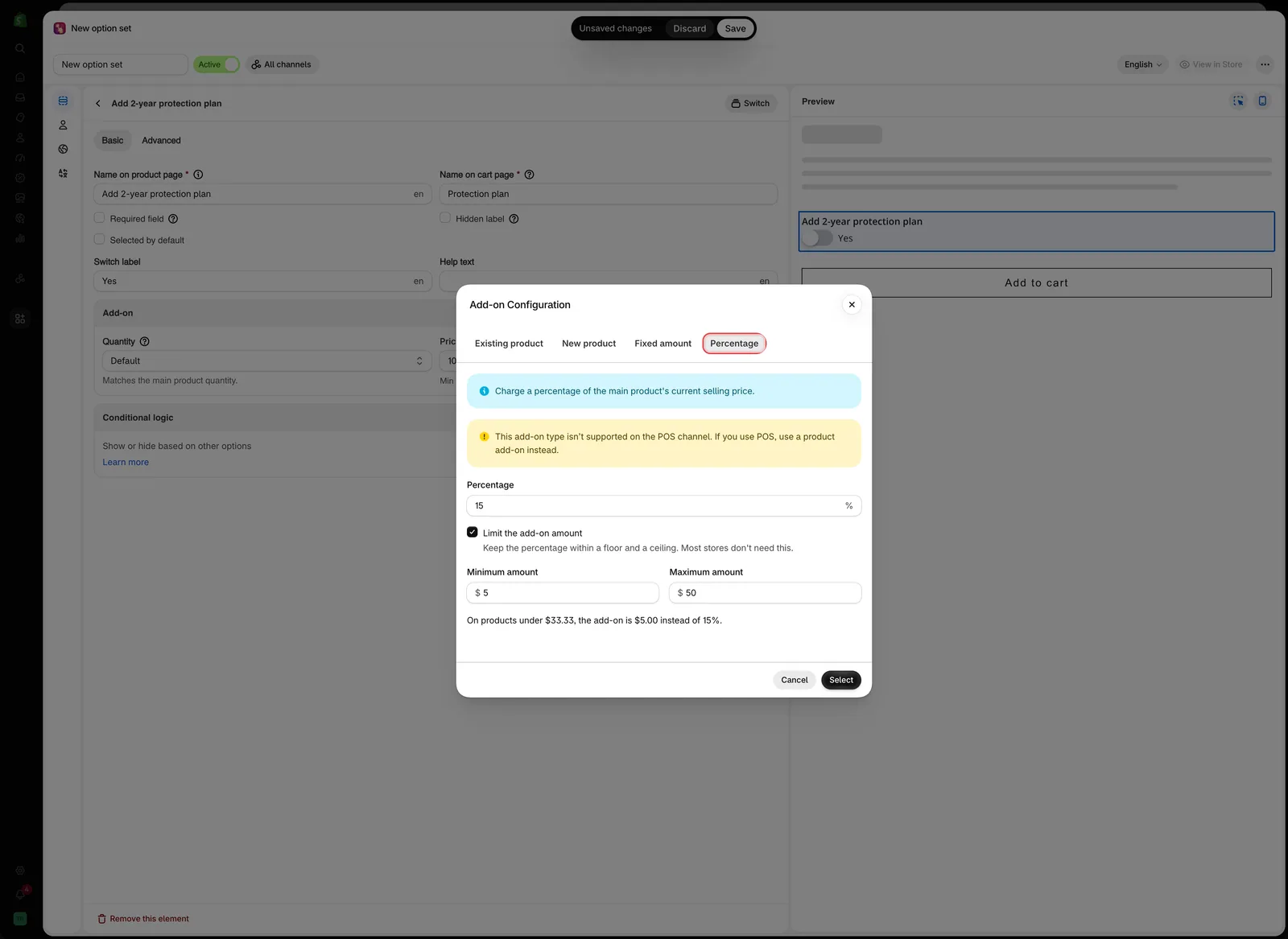
The Percentage tab, with a 15% add-on kept between $5.00 and $50.00.
-
Select Select
The dialog closes. The price field shows the percentage, such as
15%, with no currency sign. If you set a minimum or maximum, they are shown below the field, for exampleMin $5.00 · Max $50.00.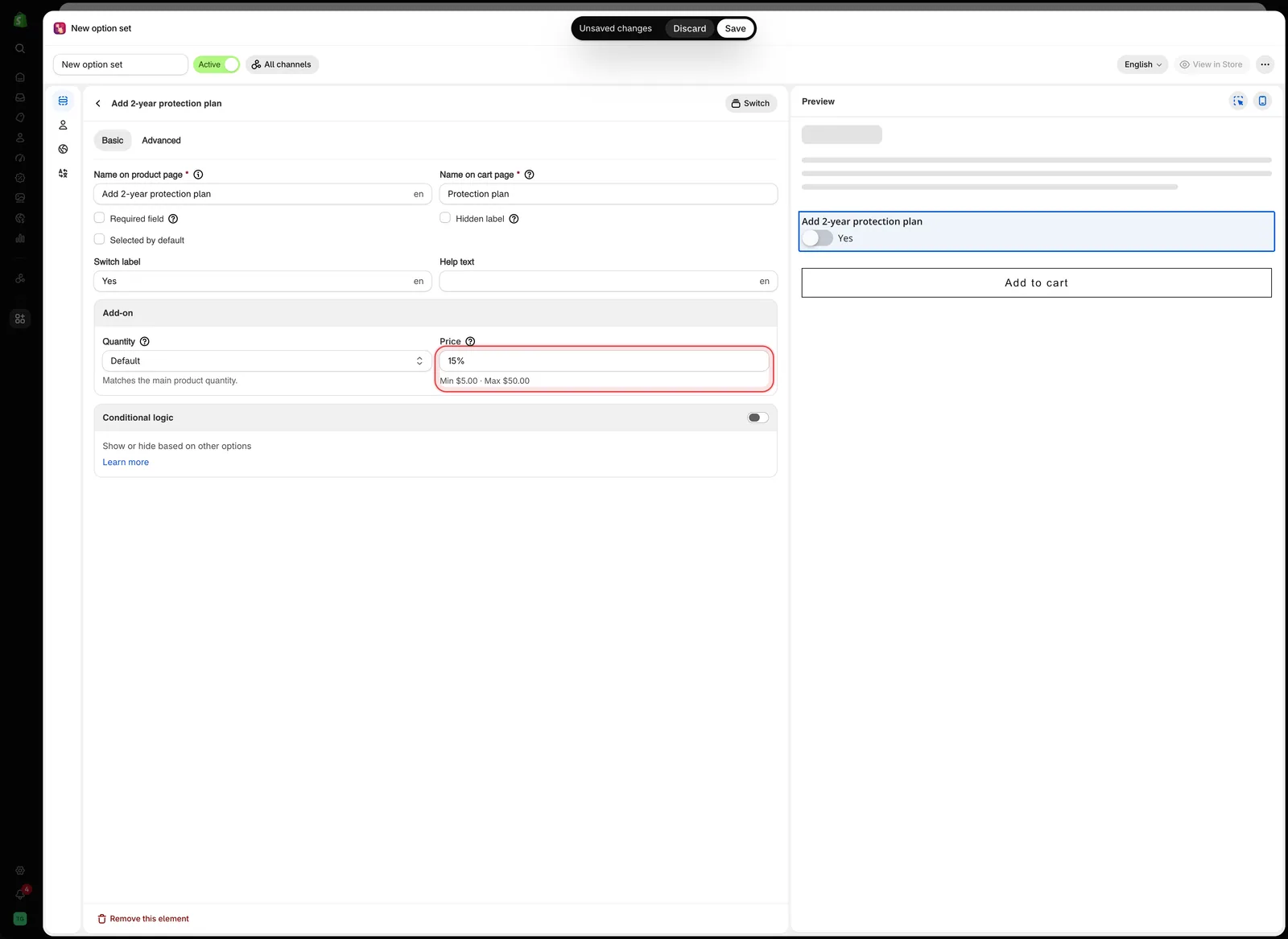
After you select it, the Price field shows the percentage and its limits.
-
Set how it scales
In the Add-on card, the Quantity field sets how many times the charge is applied. Three modes cannot be used with Percentage, the same three as with Fixed amount. See What it cannot do below and Advanced add-on modes.
-
Save and test on your storefront
Open a product the option set is assigned to and select the option. The amount beside it is the percentage of that product’s price. The charge is applied at checkout. See How pricing is applied.
How the amount is worked out
The percentage is taken from the main product’s current selling price: the price of the variant the customer has selected, for one item.
- It follows the variant. When the customer switches to a variant with a different price, the add-on amount beside the option changes with it.
- Other add-ons are not included. A 15% protection plan on a $42.00 wallet is $6.30, even if the customer also adds $3.00 gift wrapping.
- The minimum and maximum come last. The app works out the percentage, then raises it to the minimum or lowers it to the maximum.
- Amounts are rounded to the nearest cent.
- Other currencies. When a customer shops in another currency, the percentage is taken from the price they see. The minimum and maximum are set in your store’s currency and converted.
With 15%, a $5.00 minimum, and a $50.00 maximum:
| Variant price | 15% of it | Charged |
|---|---|---|
| $20.00 | $3.00 | $5.00, the minimum |
| $42.00 | $6.30 | $6.30 |
| $400.00 | $60.00 | $50.00, the maximum |
What the customer sees
The option shows the add-on as an amount of money, such as (+ $6.30), not as a percentage. The format comes from your store-wide settings. Depending on those settings, the product price on the page also updates to include it. See Add-on price display settings.
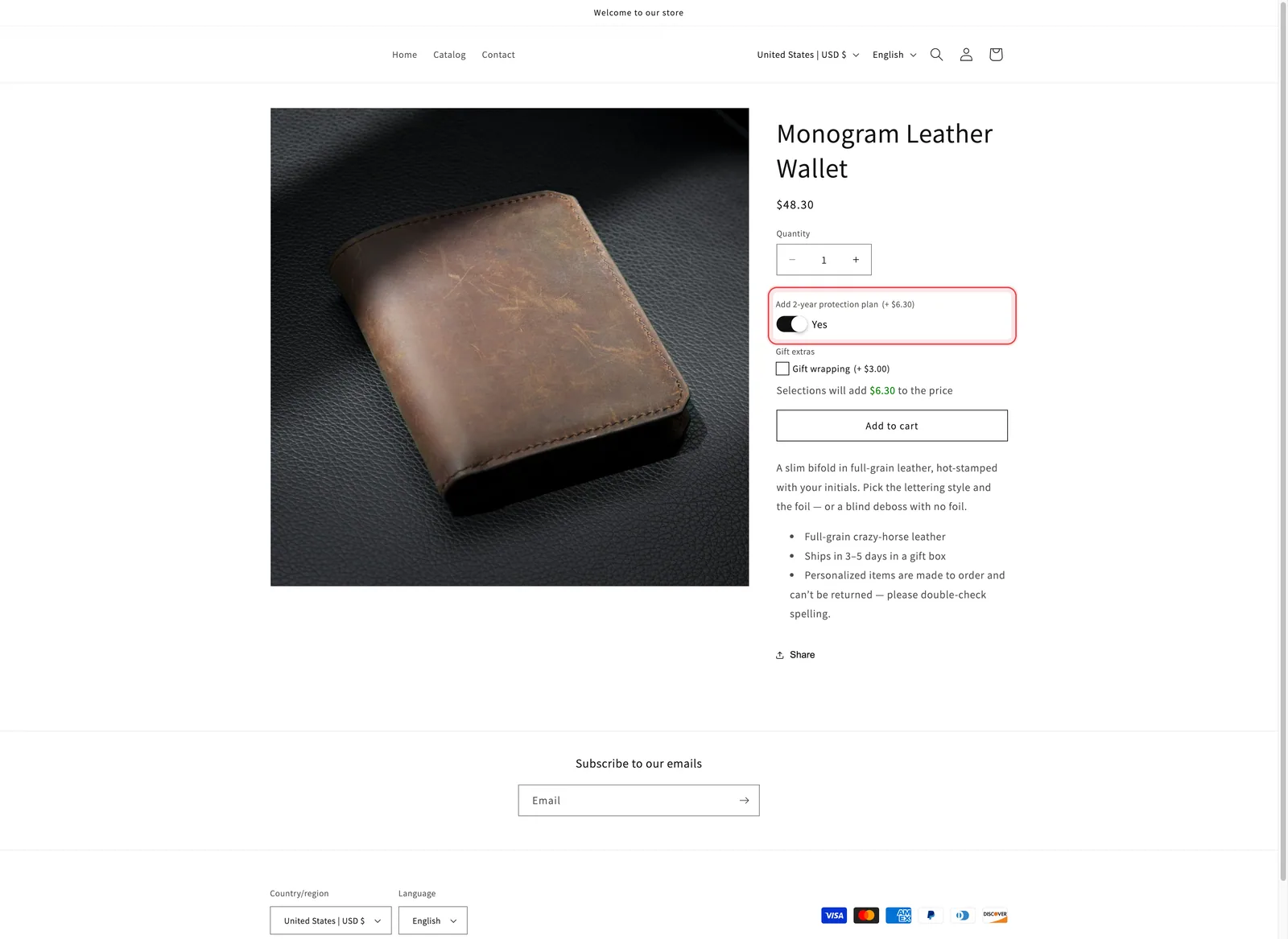
A 15% protection plan on a $42.00 wallet shows as + $6.30, and the product price updates to $48.30.
There is no separate cart line. The charge is added to the main item’s price, so the cart shows one line at the higher amount, with the option details listed below it.
What it cannot do
A percentage cannot be negative, even on stores that allow negative add-on prices. Like Fixed amount, this mode has no SKU, no weight, and no separate line in your Shopify product reports.
Not for Character range prices. The price dialog of each range in a Character range table does not offer Percentage. A range that was already saved with a percentage is flagged with Percentage isn’t available for character ranges. Choose another add-on type. Price it with Fixed amount, New product, or Existing product.
Percentage or Fixed amount?
| The charge should… | Use |
|---|---|
| Grow with the price of the item, such as a warranty or insurance | Percentage |
| Be the same on every product, such as a $5.00 engraving fee | Fixed amount |
| Grow with the price, but never be tiny or huge | Percentage with Limit the add-on amount |
| Track stock, ship as its own item, or work in POS | New product or Existing product |
Examples
A protection plan with a floor and a ceiling
| Setting | Value |
|---|---|
| Option | Add 2-year protection plan, a Switch |
| Price | Percentage 15%, minimum $5.00, maximum $50.00 |
| Add-on quantity | Default, one plan per item |
Two plan lengths
A Radio button with 1 year at 8% and 2 years at 15%, both using Percentage. Each value has its own percentage.
Rush production
A Switch labeled Rush production at 20%, so a rush order on a large print costs more than on a small one.
Notes
- The same option set can mix modes. One value can use Percentage while another uses Existing product.
- A percentage attached to a default value is charged as soon as the page loads. See Required field and default value.
- A hidden option is not charged. Hiding an option with a conditional rule removes its charge from the total.
- On a multi-select option, every selected value with a percentage is charged, each worked out from the main product’s price.
Was this helpful?
Thanks for your feedback! Tell us what was missing
Report an issue