
Essent Cart Drawer
Using product options with the Essent cart drawer, including its sticky add-to-cart bar and upsells.
Essent Cart Drawer Cart Upsell is recognized automatically. There is nothing to connect and no selector to enter.
Add-on lines in the drawer
Each add-on that is backed by a product shows as its own line in the Essent drawer, right below the item it belongs to. On those lines, the app hides the quantity selector, the Remove button, and Essent’s variant selector, so an add-on cannot be changed, swapped, or removed apart from its item.
The main item keeps all three. When the customer changes its quantity in the drawer, the add-on quantities follow it, according to each add-on’s quantity mode. Removing the main item removes its add-ons with it.
Fixed amount and Percentage add-ons have no line of their own. They are included in the main item’s price.
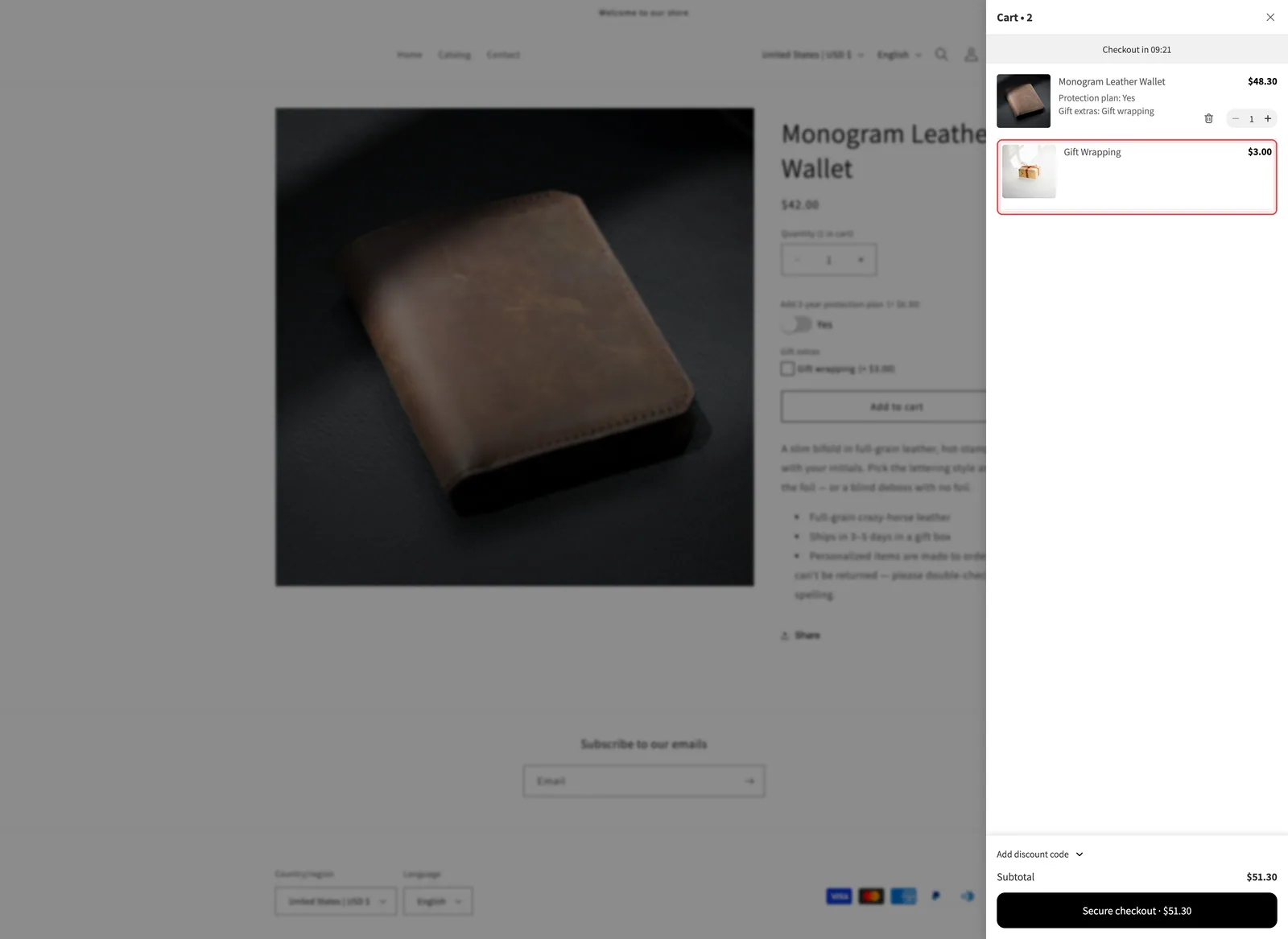
In the Essent drawer, the Gift Wrapping add-on line has no quantity selector or delete icon. The wallet keeps both, and its $48.30 price includes a 15% protection plan.
The sticky add-to-cart bar checks your options
Essent can show a sticky bar with its own quantity selector and Add to cart button while the customer scrolls the product page. On its own, that button adds the product without the option form, so required options could be skipped.
With the app installed, the sticky bar’s button follows the same rules as your product page button:
| When the customer clicks it | What happens |
|---|---|
| A required option is empty, or an entry is not valid | Nothing is added. The page scrolls to the first option that needs attention and shows its error |
| Every option is filled in correctly | The app adds the product with the customer's choices and its add-on lines |
The quantity the customer picks in the sticky bar is the one added to the cart, even though the product page has its own quantity box.
There is nothing to turn on for this. It works whenever the sticky bar is enabled in Essent.
Upsells in the Essent drawer
Essent can recommend products inside the drawer, with a button that adds them in one click.
- Your generated add-on products are hidden from those recommendations. The app checks each recommended product after Essent draws the list and hides the ones it created for you. One may show for a moment before it disappears.
- If every recommendation is hidden, the whole upsell block is hidden too, so customers do not see an empty heading.
- Products with options should open the product page. Turn on Send cart drawer app upsells to the product page, and the recommendation’s button reads Choose options and opens the product page instead. See Upsells in the drawer skip your option form.
Essent’s other drawer features, such as its reward bar, free shipping goal, and checkout timer, are Essent’s own. They work as usual and are not affected by the app.
Test it
-
Add a product with an add-on from the product page
The Essent drawer shows the main item and its add-on line. The add-on line has no quantity selector, no Remove button, and no variant selector.
-
Change the main item’s quantity in the drawer
The add-on quantity and the drawer total update to match.
-
Use the sticky bar with a required option left empty
Scroll down until the sticky bar appears and click its Add to cart. The page scrolls back to the option that needs filling in, and nothing is added.
-
Fill in the option, pick a quantity in the sticky bar, and add again
The product is added with its choices and add-ons, in the quantity chosen in the sticky bar.
Next steps
- Set up: the two settings, with screenshots
- What a drawer cannot do: Edit Options, design previews, and the other limits
- UpCart, Monster Cart, Kaching Cart, Qikify Slide Cart, and Unicorn Cart Drawer: the other recognized cart drawer apps
Was this helpful?
Thanks for your feedback! Tell us what was missing
Report an issue