
Hide specific products on collection and search page
Hide products from the storefront's collection grid and search results based on their tags — useful for internal-only or unlisted products.
What this does
Tag a product (for example, internal-only or hidden) and it disappears from the app’s product grids and search results — without unpublishing it from your Online Store, so it’s still reachable by direct link if you need that. A second tag list hides products from search results only, so a product can stay visible in collections but never come up when shoppers search.
Steps
- In the app, go to Settings > General.
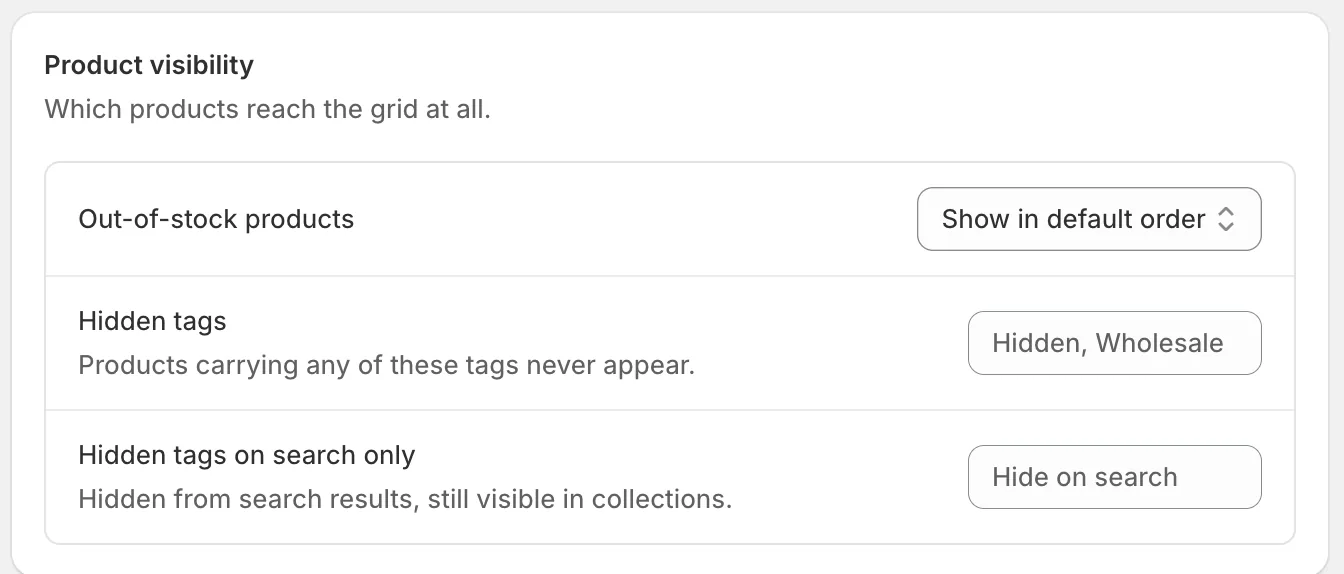
- In the Product visibility card, add tags to either list — type a tag and press Enter; added tags appear as chips under the field, and you can remove one with its ✕:
- Hidden tags — products carrying any of these tags never appear.
- Hidden tags on search only — products carrying any of these tags are hidden from search results but still visible in collections.
- Click Save in the bar at the top of the page.
Related pages
Was this helpful?
Thanks for your feedback! Tell us what was missing
Report an issue