
Manage paging style
Choose how many products load per page, and whether shoppers move between pages with numbered pagination, a "Load more" button, or infinite scrolling.
What this does
Changes how a shopper moves through a large product grid — for example, a 300-product collection set to 24 per page with Numbered pages shows page links (1, 2, 3…) they click through; the same collection with Infinite scrolling instead keeps loading more products automatically as they scroll down, with no page links or clicks needed; Load more button sits in between, loading the next batch only when the shopper clicks a button.
Steps
- In the app, go to Settings > General.
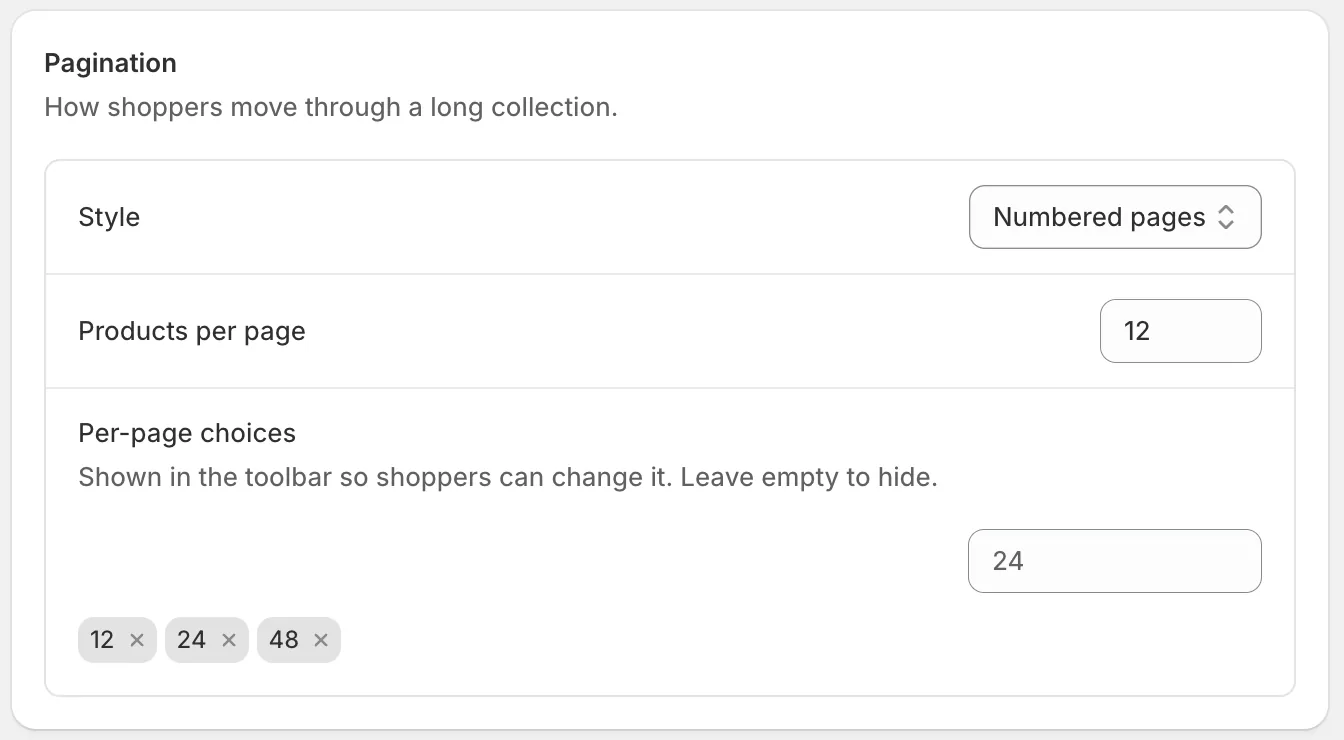
- In the Pagination card, choose a Style:
- Numbered pages — classic page-number links.
- Infinite scrolling — more products load automatically as the shopper scrolls down.
- Load more button — shoppers click a button to load the next batch.
- Set Products per page — any number from 1 to 100 (default 12).
- Optionally add Per-page choices (for example 12, 24, 48). These fill a dropdown in the product grid toolbar so shoppers can change how many products they see per page. Leave it empty to hide that dropdown.
- Click Save in the bar at the top of the page.
Related pages
Was this helpful?
Thanks for your feedback! Tell us what was missing
Report an issue