
Manage out-of-stock products
Control where out-of-stock products and variants appear in the product grid — shown in place, pushed to the end, or hidden.
What this does
Decides whether a shopper browsing your store even sees products you can’t currently sell. For example, with Hide selected, a sold-out jacket simply won’t appear in that collection at all — shoppers won’t hit a dead-end product page for it; with Show at the end, it still appears (so search engines and direct links to it keep working), just pushed below everything that’s in stock.
Steps
- In the app, go to Settings > General.
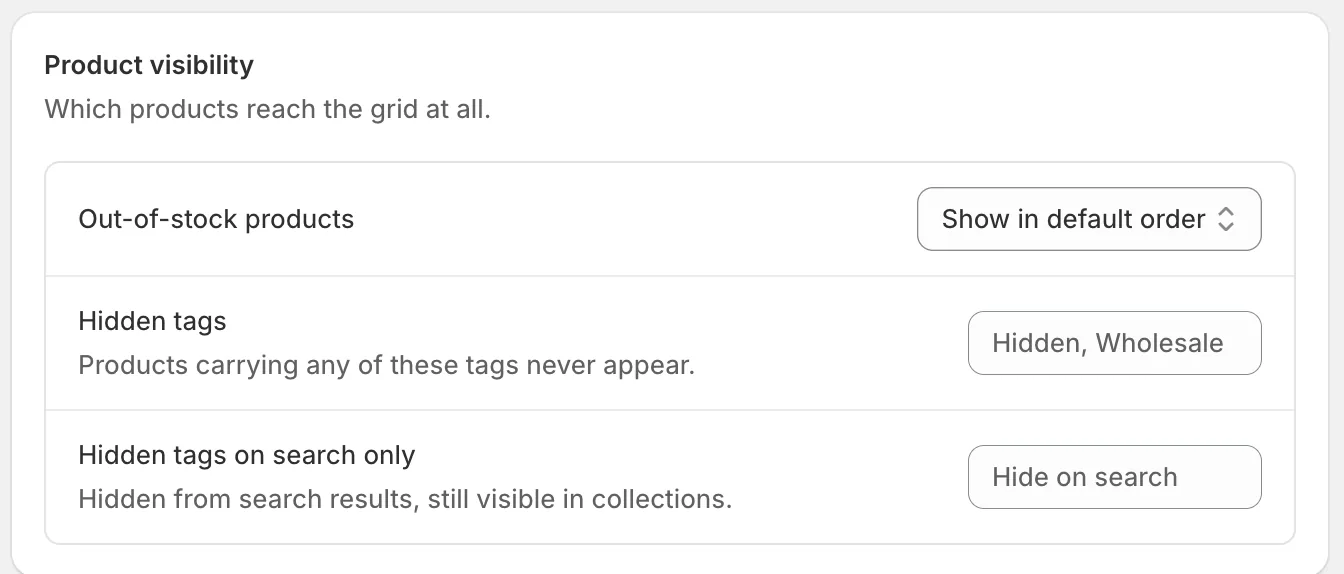
- In the Product visibility card, open the Out-of-stock products menu and choose one:
- Show in default order — no special treatment; out-of-stock items appear wherever they’d normally sort.
- Show at the end — in-stock products appear first, out-of-stock ones are pushed to the bottom of the grid.
- Hide — out-of-stock products and variants never appear in the grid.
- Hide only when filtering — out-of-stock items stay visible while browsing normally, but disappear once a shopper applies a filter.
- Click Save in the bar at the top of the page.
Related pages
Was this helpful?
Thanks for your feedback! Tell us what was missing
Report an issue