
No results
Instead of a plain 'no results' message, show shoppers spelling correction, categories, popular searches, and product recommendations when their search matches nothing.
What this does
By default, a search that matches nothing — for example a typo like “quilted jaket”, or a term you simply don’t stock — leaves the shopper looking at a plain “no results” message with no obvious next step, which is a common reason shoppers leave the store entirely. No results replaces that dead end with a spelling correction, category links, popular searches, recently-viewed items, product recommendations, and links to help pages, keeping the shopper moving instead of ending their visit there.
Steps
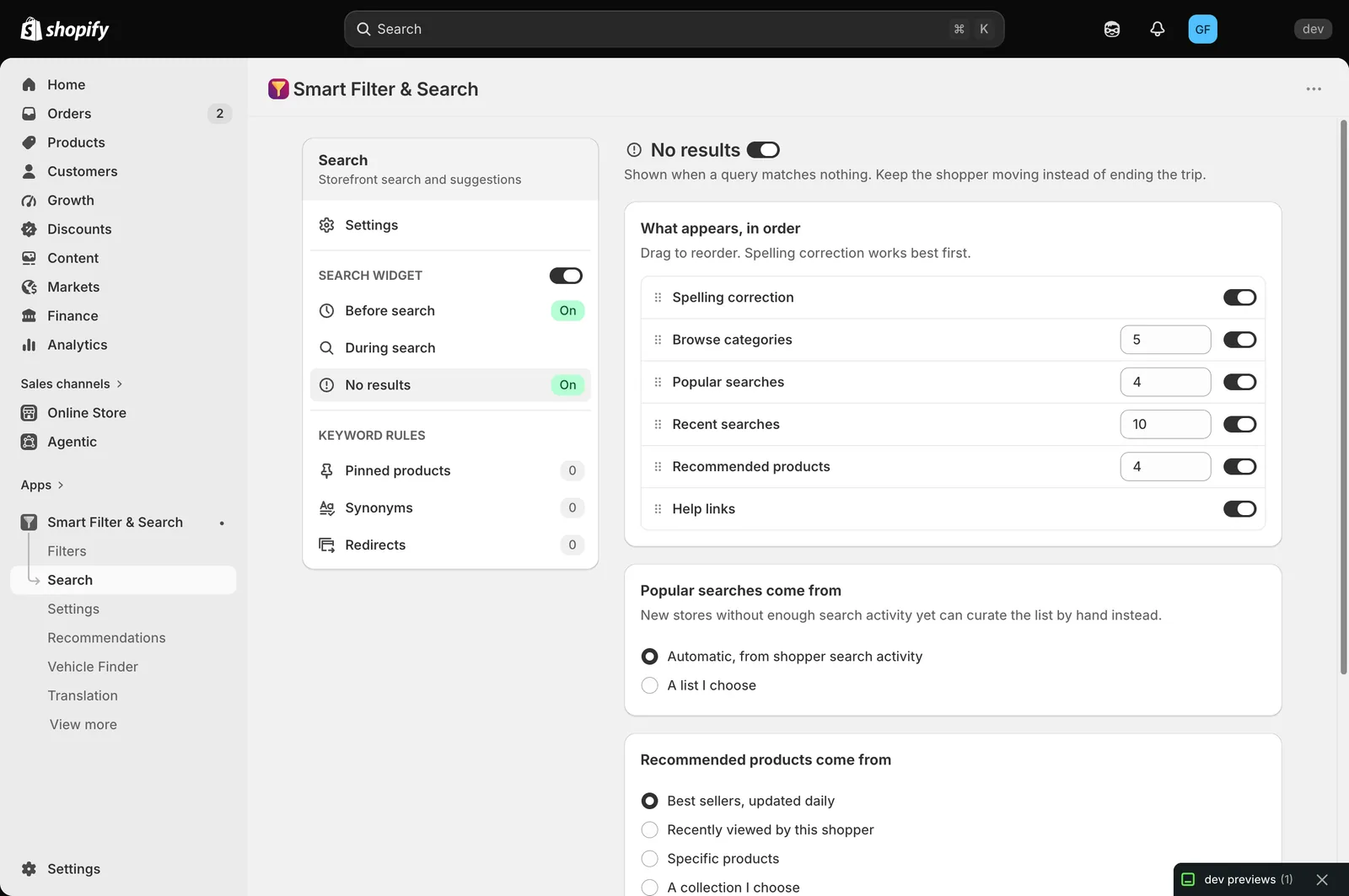
- In the app, go to Search > No results.
- Turn on whichever sections you want to show, and set how many items each one displays. Drag rows under What appears, in order to change the order they appear in — spelling correction works best shown first:
- Spelling correction — an on/off toggle, no item count.
- Browse categories — links into your store’s categories.
- Popular searches — frequently-searched terms.
- Recent searches — the shopper’s own past searches (per-device).
- Recommended products — a curated product list.
- Help links — links pulled from one of your store’s navigation menus.
- If Popular searches is on, choose where that list comes from, under Popular searches come from: Automatic, from shopper search activity, or A list I choose — pick the manual option if your store doesn’t have enough search history yet.
- If Recommended products is on, choose where those products come from, under Recommended products come from: Best sellers, updated daily, Recently viewed by this shopper, Specific products, or A collection I choose.
- If Help links is on, pick which menu supplies the links, under Help links menu — this is pulled from Online Store > Navigation in Shopify admin.
- Use the top-right switch to turn No results on or off entirely.
Tips
- Pair this with Synonyms settings — many “no result” searches are simply a wording mismatch a synonym can fix.
Related pages
Was this helpful?
Thanks for your feedback! Tell us what was missing
Report an issue