
Configure recommendation settings
Set store-wide rules that apply across every recommendation widget — what to exclude and what to always include.
What this does
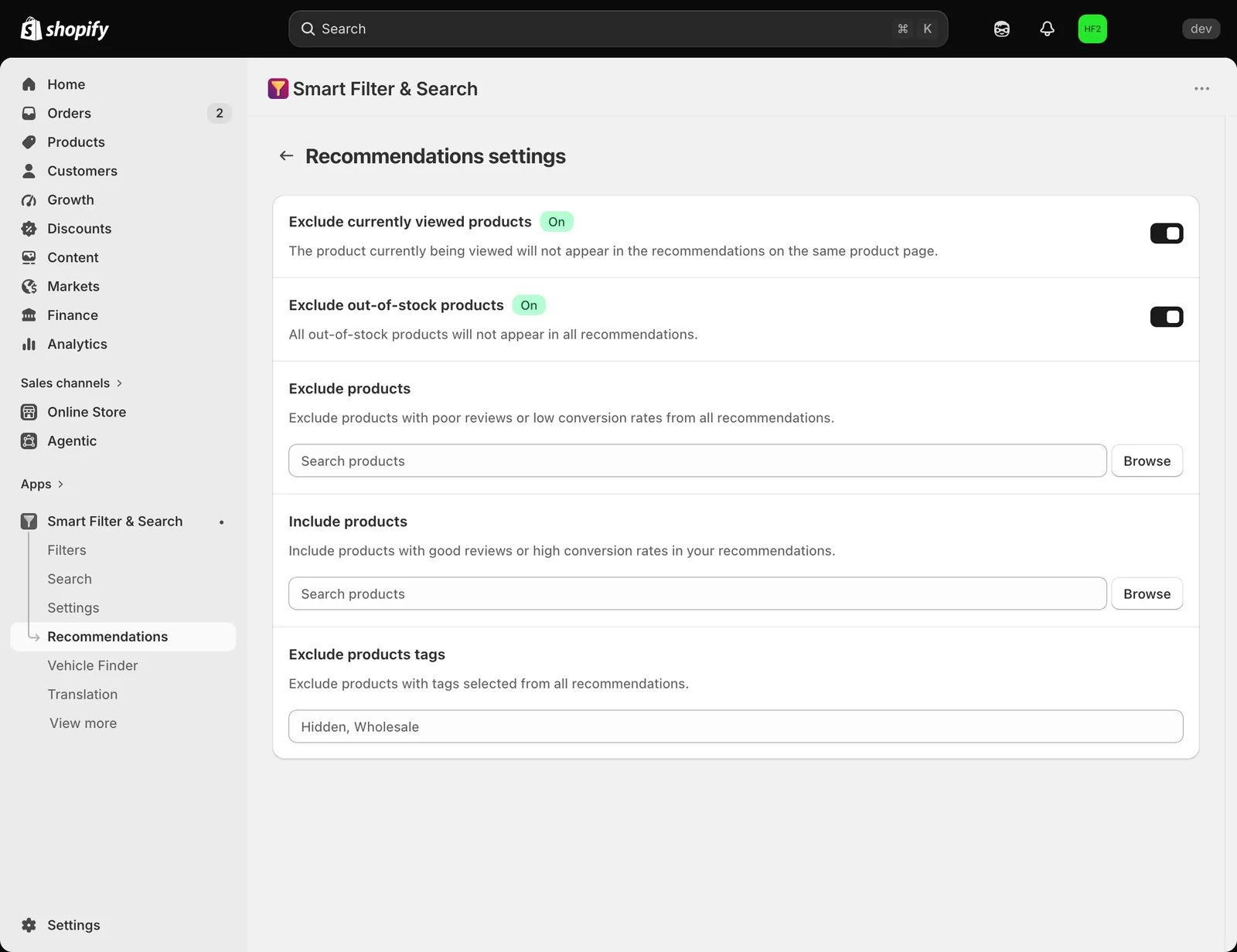
Applies a rule once across every recommendation widget at the same time, instead of configuring each widget separately. For example, turning on Exclude out-of-stock products stops out-of-stock items from showing up in any widget — including ones you’ve hand-picked — and adding a product to Exclude products removes it everywhere it could otherwise be recommended, without having to edit each widget individually.
Steps
- In the app, go to Recommendations > Settings.
- Configure any of the following:
- Exclude currently viewed products — don’t recommend the product a shopper is already looking at.
- Exclude out-of-stock products — never recommend products that are out of stock.
- Exclude products — pick specific products (up to 50) that should never appear in any recommendation widget.
- Include products — pick specific products that should always be eligible for recommendation, regardless of other rules.
- Exclude products tags — products with any of these tags are never recommended.
- Click Save.
Related pages
Was this helpful?
Thanks for your feedback! Tell us what was missing
Report an issue