
Instant search widget layout
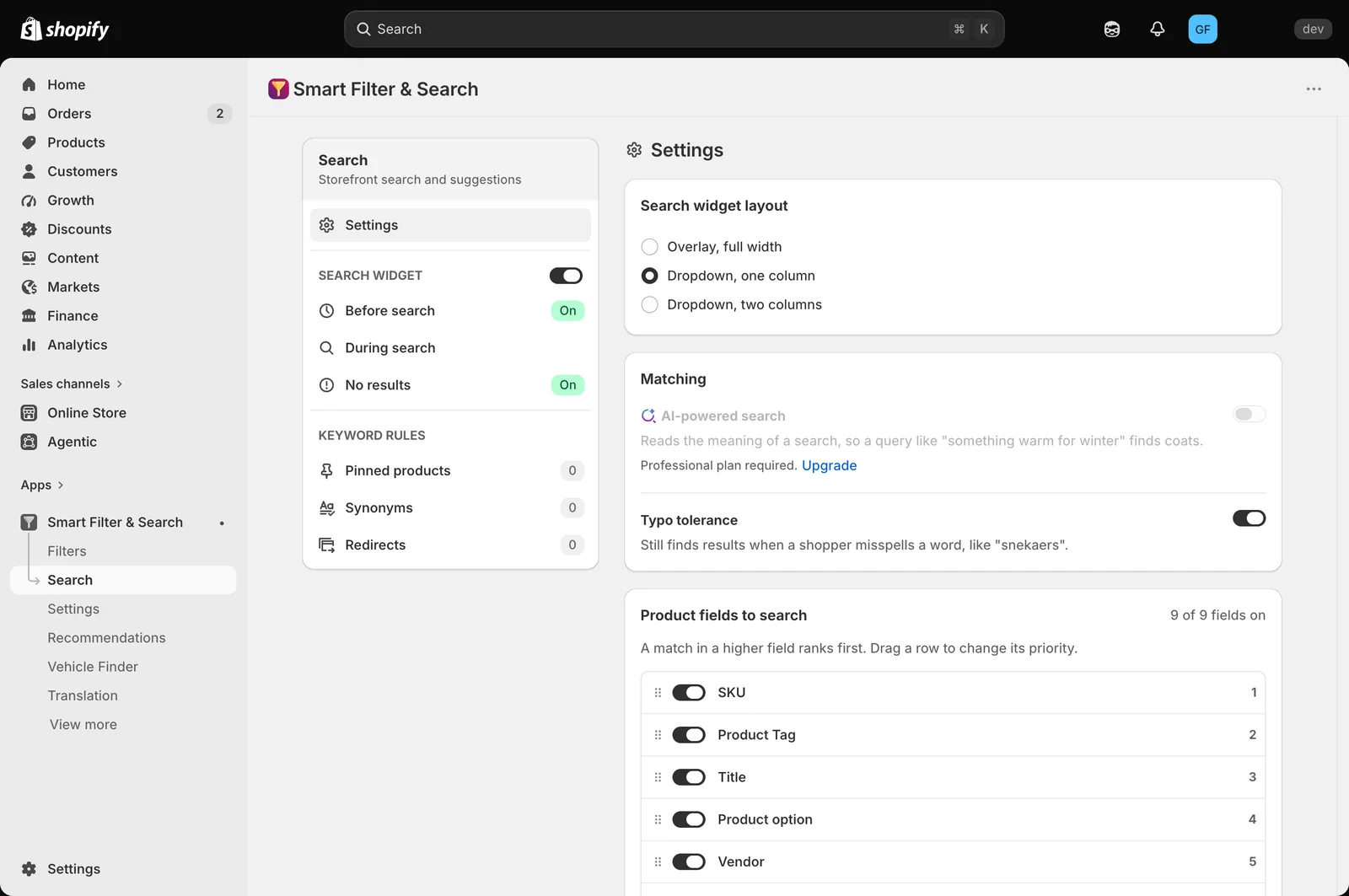
Customize how the instant search widget's results panel looks, and what's shown per product, from Search > Settings.
What this does
Two separate things are configurable here: how much space the results panel takes up on the page (Search widget layout), and how much detail is shown per product (Product list)
Widget layout
- In the app, go to Search > Settings.
- Under Search widget layout, choose one:
- Overlay, full width — results open in a full-width panel below the search box.
- Dropdown, one column — a narrower dropdown with results in a single column.
- Dropdown, two columns — a narrower dropdown with results split into two columns.
- Click Save in the bar at the top of the page.
Product list
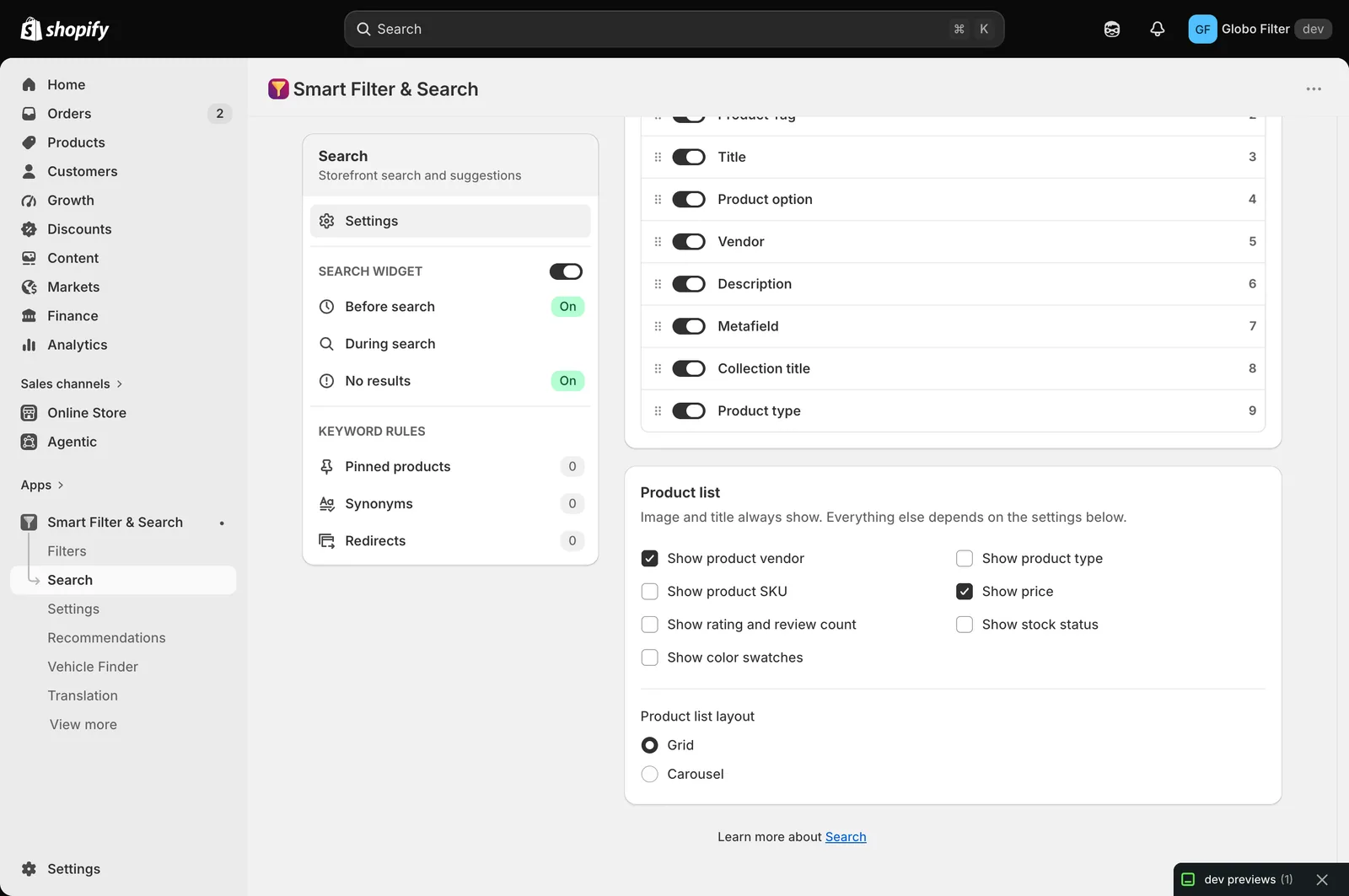
Under Product list (image and title always show — everything else depends on these settings):
- Show product vendor / Show product type / Show product SKU / Show price / Show rating and review count / Show stock status / Show color swatches — toggle which details appear on each product result.
- Product list layout — Grid or Carousel.
Related pages
Was this helpful?
Thanks for your feedback! Tell us what was missing
Report an issue