
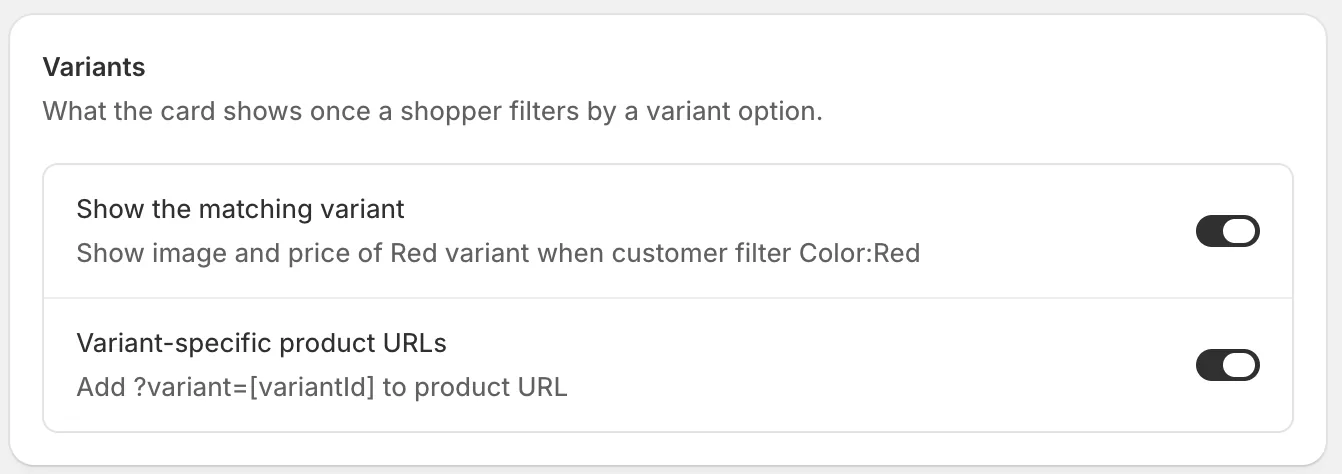
Use variant-specific product URLs
Link each filtered variant straight to its own product page URL, so shoppers land directly on the variant they selected in the filter.
What this does
When a shopper filters or searches by a variant option (for example, filtering by Color: Blue) and clicks through to a product, they land on that product’s page with the Blue variant already selected — its price, image, and “Add to cart” already reflecting Blue — instead of landing on the product’s default variant and having to find and re-select Blue themselves.
With this off, every click-through opens the product page on its default variant, no matter which variant the shopper actually filtered/searched for, so they have to manually switch variants once they arrive.
Each variant also gets its own distinct, shareable URL, so a link to a specific variant (e.g. from a shared cart, an ad, or a bookmark) opens directly on that variant.
Steps
- In the app, go to Settings > Product grid.
- In the Variants card, turn on Variant-specific product URLs. The app adds
?variant=[variantId]to each product link. - Click Save in the bar at the top of the page.
Related pages
Was this helpful?
Thanks for your feedback! Tell us what was missing
Report an issue