
Configure pinning products
Pinning puts specific products at the top of search results for chosen keywords — useful for promoting bestsellers, new arrivals, or sponsored items...
What this does
Normally, search results are ordered automatically by relevance. Pinning overrides that ordering for specific keywords: you assign one or more products to a search term (e.g. Dress), and from then on, whenever a shopper searches for that term, the pinned product appears first — ahead of whatever would otherwise rank higher, and regardless of the normal ranking logic.
This is useful for guaranteeing visibility on high-traffic search terms: putting a bestseller or new arrival at the top of its most relevant search, or fulfilling a sponsored-placement commitment, without having to change your product data or overall search settings to influence ranking.
Steps
- In the app, go to Search > Pinned products.
- Click Add pinning.
- Under Add search terms, enter the keyword(s) this applies to (e.g.
Dress, Shirt). - Under Select products, search for or Browse the product(s) to pin.
- Click Save in the bar at the top of the page.
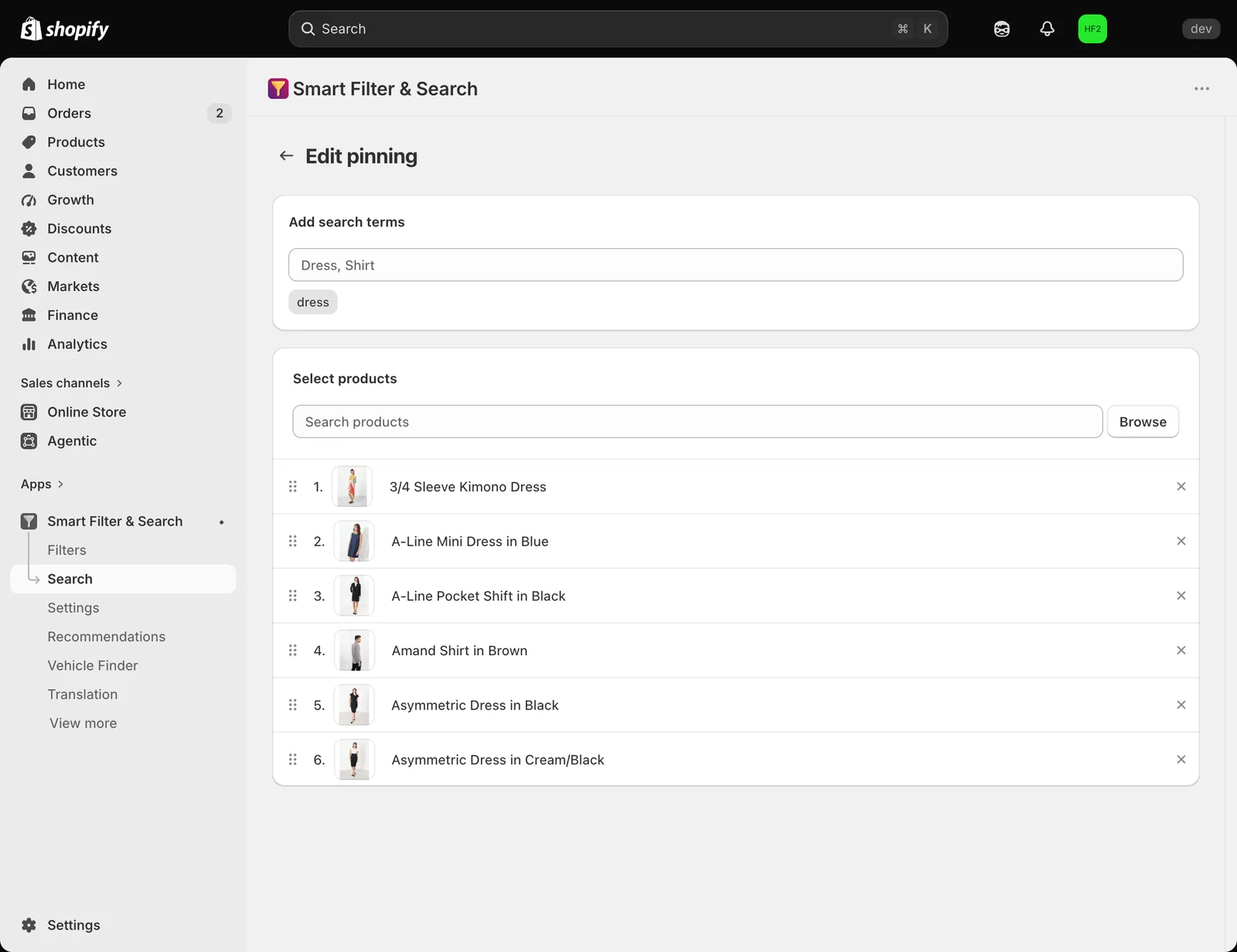
The pinned product will be listed at the top of search results whenever a shopper searches for the assigned keyword.
Bulk import/export via CSV
Use Import / Export on the Pinned products page to manage a large number of pinnings at once.
Related pages
Was this helpful?
Thanks for your feedback! Tell us what was missing
Report an issue